

Campaigns
A campaign sends a personalized proposal (a renewal, an upgrade, or a win-back) to many of your existing clients at once, in batches, and this page covers setting one up, sending it, and following it.
Before you start
- Publish a template. A campaign needs a template with your letter and terms. Until you have one, New campaign says "A campaign needs a template with your letter and terms" and Start the campaign stays greyed out. See Templates.
- Fill in your catalog. What clients are offered is built from your catalog items, and new prices come from the catalog. See Catalog.
- Import or add your clients, with an email address for each one you want to reach. See Clients.
- Have credits. Each proposal uses 1 credit when it goes out. See What's a credit?.
How a campaign works
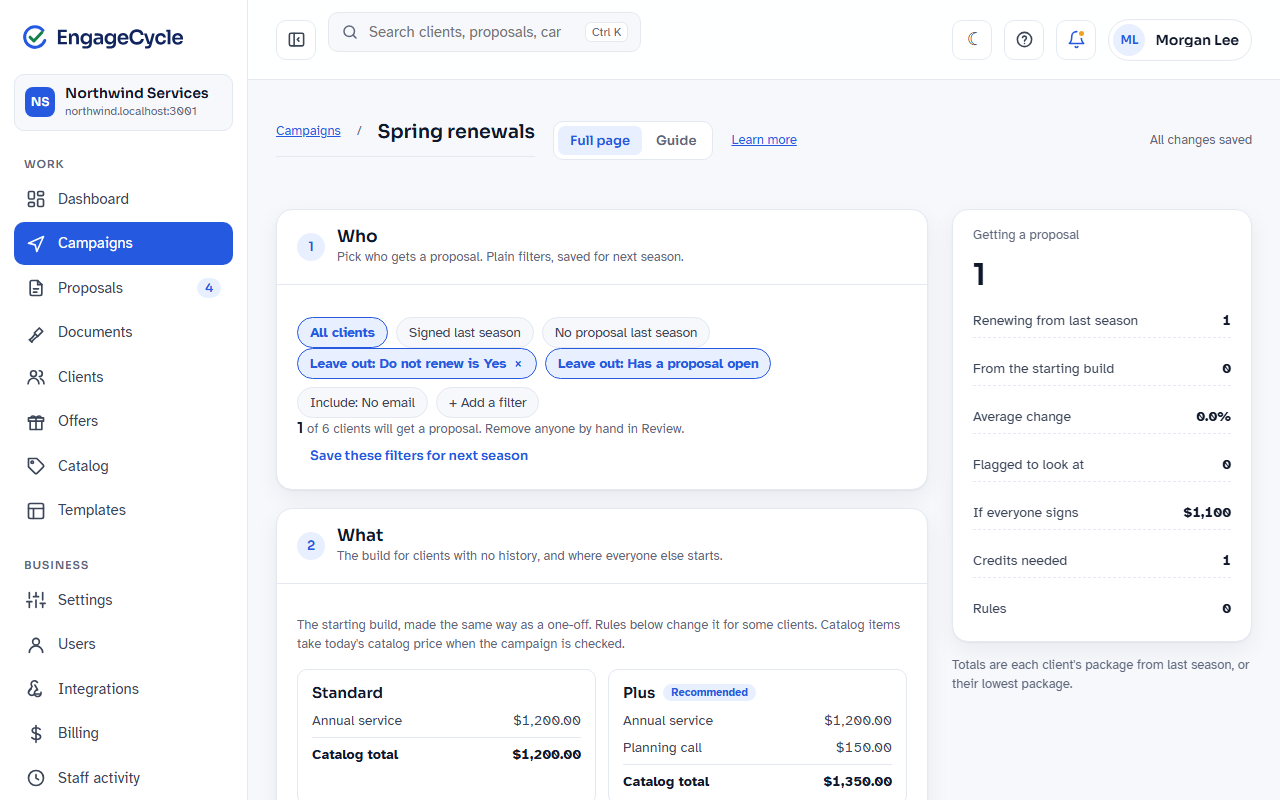
Every campaign is a plan with seven numbered sections on one page:
- Who: which clients get a proposal.
- What: the starting build (packages, items, and add-ons), and where each client starts.
- Change it for some clients: rules that change the build for clients who match.
- Prices: how last season's prices change.
- Template: the look and wording.
- Review: every client, what they'll get, and why.
- Send: batch size and timing, then Schedule the campaign.
A summary on the right side updates as you work: Getting a proposal, Renewing from last season, From the starting build, Average change, Flagged to look at, If everyone signs, Credits needed, and Rules.
Every change saves on its own. The top of the page says Saving…, then All changes saved. Nothing goes to any client until you schedule the campaign.
Full page or Guide. The buttons at the top switch between the full page and the Guide, which asks one question per step: "Who is this for?", "What are you offering?", "Does anything change for some clients?", "How should prices change from last season?", "Which template?", and "Check the results". Both edit the same campaign, so you can switch at any time and lose nothing. Your first campaign opens in the Guide; later ones open on the full page. In the Guide, use Back and Next, or Switch to the full page.
Create a campaign
- Go to Campaigns and click New campaign.
- Type a Campaign name (for example "2027 renewals").
- Choose a Kind: Renewal, Upgrade, Win-back, or One-off.
- Click Start the campaign. The campaign builder opens.
The campaign starts on your default template for its kind. New campaigns also start with your business's default "Leave out" filters already on (for example, clients marked do not renew).
From the Clients list. You can also tick clients on Clients, click Send a proposal, name the campaign, and click Set up the campaign. That campaign is for just those clients. Nothing is sent until you look through everyone and schedule it.
An agreement or consent, with no price. To send an agreement or a consent on its own to many clients, click Start a document campaign under Start the campaign instead. It shows when your plan includes agreements or consents. See Agreements and consents.
Who: pick the clients
- Choose who to start from:
- All clients
- Signed last season: only clients with a signed proposal from before.
- No proposal last season: only clients without one.
- To leave a group out, click + Add a filter, pick a condition, and click Add. It shows as a chip such as "Leave out: Do not renew is Yes". Click the × on a chip to stop leaving that group out.
- Check the two switches:
- Leave out: Has a proposal open (on by default). Click it to change it to Include: Has a proposal open.
- Include: No email (the default). Click it to change it to Leave out: No email.
- Read the line under the filters, for example "180 of 212 clients will get a proposal." It updates as you go.
Filters can use your client fields (yes/no, choice, and number fields), Count of a catalog item, Last signed package, and New this season. Text fields aren't offered.
Save filters for next season. Click Save these filters for next season, fill in Name these filters, and click Save. Next time, pick it from Start from saved filters. Clients you removed or added by hand aren't saved, since they're this season's.
What: build the offer
The What section shows the starting build as package cards, with a Catalog total for each and the Add-ons the client can tick.
- Click Edit the starting build. It opens in the same editor as a one-off proposal and saves as you go.
- Add packages, items, and add-ons. Under Details, choose Link ends after (how many days each client has to respond).
- Click Back to the campaign.
Instead, you can pick one under Or start from a preset and click Use it. That replaces the starting build with a copy of the preset, and the preset itself doesn't change.
Then choose where clients start:
- Start from each client's last signed proposal: each client gets the same package and items as last season, then the rules and the price change. Clients with no history get the starting build.
- Everyone starts from the build above: last season is ignored, and prices are today's catalog.
Clients with no signed build
Only a signed proposal counts as "last season". A client without one (a new client, or one whose only history is an imported prior price) always starts from the starting build, at today's catalog prices, changed by the rules. Their prior price is never used to price anything. Review shows it next to the new total, labeled Prior price, so you can spot big differences before sending. A client with neither shows New.
Starting-build clients get quantities from their counts only through a rule. The Use each client's counts suggestion (below) adds those rules in one click.
Change it for some clients: rules
A rule reads "If a client matches, then change their build". Rules choose what's offered and can raise prices by a percent. They never type a price.
- Click + Add a rule, or click one of the Common suggestions.
- Under If, pick a condition. Add more with + And another condition, then choose all of these or any of these.
- Under Then, pick a change. Add more with + Another change. The changes are:
- Use a different item instead
- Set an item's quantity from their count
- Add an item to every package
- Offer an item as an add-on (never ticked for the client)
- Remove an item
- Hide a package
- Show only this package
- Mark a package Recommended (a badge only, never a selection)
- Raise their prices by a percent
- Each rule shows how many clients it matches now, for example "38 clients". Click that number to see those clients in Review.
- Use Up, Down, and Remove to reorder or delete rules.
Order matters. Rules run top to bottom. When two rules change the same thing, the later one wins, and the page says so under it: "Changes the same thing as rule 2. This rule runs later, so it wins for clients who match both."
Raises add up. A client who matches a +3% rule and a +2% rule gets 5%, applied once.
New add-ons for renewing clients. Clients renewing from last season keep last season's add-ons and get no others automatically. To offer them a new one, add a rule with Offer an item as an add-on.
Prices: how last season's prices change
This applies to clients starting from last season. Clients with no history get today's catalog prices.
- Choose one:
- Keep last season's prices: each client pays what they paid. Anything new is at today's catalog price.
- Raise by a percent: last season's prices, raised and rounded. Type the percent in Raise by (%).
- Move everyone to current catalog prices: ignores what each client paid before.
- Choose Round each changed price to: No rounding, or a step such as $5, $10, or $25.
- Optionally, type a number in Flag increases over (%). Clients whose total rises more than that are flagged in Review. Leave it empty for no flag.
Only prices a percent changed are rounded. A kept price of $347 stays $347. A rule's raise adds to the price rule's percent (5% plus 3% is 8%, applied once).
Discounts
Keep last year's discounts (on by default) brings each renewing client's discount lines from their last signed proposal, at the same amount. Their services still renew as the price rule above says; a discount is never folded into a price, and raises never change it. Review flags each such client with "Carried a discount from last year". Turn it off to start everyone without last year's discounts.
A discount in the starting build (add it with + Add a discount there) goes to every client, renewing or new. When a client carried the same catalog discount from last year, they get this year's amount instead, once.
A client whose discounts would take a total below zero can't be sent; Review says why. Fix it with Adjust, which opens their proposal in the builder.
Template
Click a template card to choose the look and wording. Cards show Your default or Recently used. If you have more, use See all templates. Prices never come from the template.
Review: check every client
Review lists every client with Client, Gets, Last season, This season, Change, and Rules applied.
- Gets shows the packages offered (★ marks Recommended) and whether they come From last season or From the starting build.
- Left-out clients stay in the list, dimmed, with the reason (for example "Left out: has a proposal open").
- Clients who can't be sent show why in red, for example "Can't send: Deep clean has no price yet".
- Flags appear under the client's name: "Up 12%", "No email", an archived item, an item with no catalog price, "Copied people changed" (the people copied on their proposal aren't the same as on last season's signed one), or "Carried a discount from last year" (see Discounts). Flags never block sending.
Use the buttons along the top to show Everyone, Flagged, Left out, Can't send, or Adjusted, and Search clients to find one by name. Review shows 50 clients per page.
Per client:
- Leave out removes one client. Add back undoes it.
- Adjust opens that client's proposal in the builder so you can change it by hand. From then on the plan no longer changes them, and they show Adjusted in the builder ("Goes once it has its own preview"). Open it again with Open.
Several at once: tick clients, then use Leave out, Raise by this percent, or pick an item and click Remove it. Raising and removing add a new rule for "These clients (12)", shown with your other rules.
When you've been through the list, click I've looked through everyone at the bottom. It changes to Marked: looked through everyone.
Preview a client's proposal
- Click Preview next to a client, or Preview a client's proposal in Send.
- The proposal opens beside the page, exactly as that client will see it. A line at the top says where they start, which rules matched, and any flags.
- Use Desktop and Phone to check both sizes, and Prev and Next (or the arrow keys) to move between clients.
- When it's right, click This looks right. It changes to Marked: looks right.
- Click Close (or press Escape).
Adjust in the builder in the preview does the same as Adjust in Review.
Send: schedule the batches
- In Send, check the Campaign name and set:
- Proposals per batch
- First batch: a date and time in your business's time zone. Leave it empty to start as soon as you schedule.
- Then every: Hour, Day, or Week.
- Fix anything listed under the buttons. Until both are done, you'll see:
- "Look through everyone in Review, then mark it."
- "Preview a client's proposal and mark that it looks right."
- Click Schedule the campaign.
- Schedule this campaign? says how many proposals go out, in batches of how many, and what credits you have. Click Schedule.
You'll see "Scheduled: 180 proposals, first batch within a minute" (or "at the time you chose"). Any clients who couldn't be sent are counted in that message, and Review lists why.
When you schedule, every client's proposal is made from the plan right then. If something changed since your preview (a catalog price, the template, the logo, or the client's details), you'll see "This changed since your preview. Preview it again." Preview a client again and schedule once more.
Follow progress
After scheduling, Campaigns opens the campaign's own page. It shows:
- Status: Being set up, Ready to send, Sending, Paused, or Finished.
- Batches (for example "50 at a time, every day") and Next batch.
- Counts of proposals that are Not sent yet, Sent, Opened, Signed, Declined, Expired, and Withdrawn, plus how many were left out.
- Proposals: every client's proposal with its status and Expires date ("on send" until it goes out).
The Dashboard also shows your current campaign's progress (sent, opened, signed). Staff notices tell you when a batch goes out, when a batch is waiting, and when the campaign finishes sending.
From the list:
- Look at it shows a proposal that hasn't gone out yet. Preview shows one that has.
- Resend link emails an open proposal's link again. Reissue link sends a fresh link for one that was withdrawn, or that expired in the last 30 days.
Reminders and expiry
- Each client's link ends after the days you chose in Link ends after, counted from when their batch goes out.
- A reminder goes once, a few days before an open link expires. Set how many days in Settings > Email under Reminder, days before the link expires (0 turns reminders off).
- Tell clients when their link expires (same page) emails clients when a link expires.
See Email settings.
Pause, send now, or stop
On the campaign's page:
- Pause stops the next batches. Resume starts them again.
- Send the next batch (50) sends one batch now. It asks Send the next batch now? with the credits it uses.
- Send batches automatically (when paused) restarts the schedule. Each batch still checks credits first.
- See the plan shows the plan, read only.
Editing after scheduling. Once scheduled, the plan can't change ("The plan can only change before sending starts"). You can still change a single client's proposal that hasn't gone out with Adjust, which needs its own fresh preview before it goes. To change a proposal that's already been sent, revise or withdraw it from the proposal itself. See Proposals.
Credits and batches
- Each proposal uses 1 credit when it goes out, not when you schedule.
- Each batch is checked for credits as a whole before any of it sends, so a batch never stops part-way.
- If a scheduled batch doesn't fit, it waits and you get a notice: "Out of credits. The batch goes once credits are added." It goes on the first minute it fits after credits are added, with nothing else to do.
- Send the next batch by hand is refused with the reason if the batch doesn't fit.
See Credits.
Worked example
Northwind Services is a cleaning company with 212 clients. Last year most clients signed a proposal for the Standard or Plus package. This year Northwind wants to renew everyone at 4% more, rounded to $5, and give clients with extra rooms the right quantity.
- New campaign: name "2027 renewals", Kind Renewal, then Start the campaign.
- Who: All clients. The default "Leave out: Do not renew is Yes" chip is already on, and Leave out: Has a proposal open stays on. The line reads "180 of 212 clients will get a proposal."
- What: Edit the starting build with two packages, Standard (Standard clean) and Plus (Standard clean and Deep clean), plus an "Extra room" item and a "Window washing" add-on. Link ends after 30 days. Back on the campaign, keep Start from each client's last signed proposal.
- Rules: click Use each client's counts, so each starting-build client gets their own number of extra rooms. Add a rule: If New this season is Yes, then Hide a package: Plus.
- Prices: Raise by a percent, Raise by (%) 4, Round each changed price to $5, Flag increases over (%) 15.
- Review: Alex Rivera renews from last season at $200, now $210 (+5.0%). Jordan Lee has no signed proposal but a prior price of $150, so the starting build at today's catalog gives $185 and the flag "Up 23%". Northwind clicks Adjust for Jordan and lowers the price by hand. Sam Patel shows "No email", so Northwind adds an email on Clients. Then I've looked through everyone.
- Preview Alex's proposal on Phone, then This looks right.
- Send: Proposals per batch 50, First batch Monday at 9:00 AM, Then every Day. Schedule the campaign, then Schedule.
The first 50 go out Monday morning, and the rest follow daily. Northwind watches Opened and Signed climb on the campaign's page.
Good to know
- Clients with an open proposal are left out by default. "Open" means a proposal from any campaign, offer, or one-off that was sent or opened and hasn't expired. Click the chip to Include: Has a proposal open if you want them to get a second one.
- Clients with no email aren't dropped. They stay in the list, flagged "No email", and are skipped in each batch until you add an email.
- Changing the plan resets your checks. After any change to Who, What, rules, prices, or the template, mark Review and preview a client again.
- Your check is repeated at scheduling. Proposals are made when you schedule, from the same plan you reviewed, so what you previewed is what's sent.
- Fields never set a price. Fields and filters decide who gets a proposal and which rules match. Prices come only from your catalog or last season.
- Nothing is preselected for the client. Packages and add-ons are shown with no default choice. "Recommended" is a badge only.
- Each client's signers and copied people come along. A client's proposal goes to the people on their client record, the same as a one-off proposal, and uses 1 credit however many people are on it. See Signers and copied people.
- When client email is paused, scheduled batches wait without pausing the campaign, and carry on when email resumes.
- Campaigns made before the campaign builder are labeled so in the list. They finish as they are. If one hasn't sent anything, Copy into the builder makes a new builder campaign from it, and the old one stays unchanged.
- Signed proposals can't change. Once a client signs, their proposal and signed PDF are fixed.