

Settings
This page walks through every area of Settings: your business details and branding, email, notices, client fields, industry packs, support access, and exporting or closing your account. It also covers credits, which you see in the top bar rather than in Settings. Webhooks and API keys are under Integrations.
Before you start: only owners can change settings. Staff can open Settings to see how things are set up, but can't save changes, and don't see Security. See Users, roles, and your account.
Find a setting
- Click Settings in the sidebar.
- Type in the Search settings box at the top, for example "logo" or "reminder".
- Click a match, or press Enter to open the first one.
The menu on the left jumps to each section: Your business, Sending, Clients, and Your data.
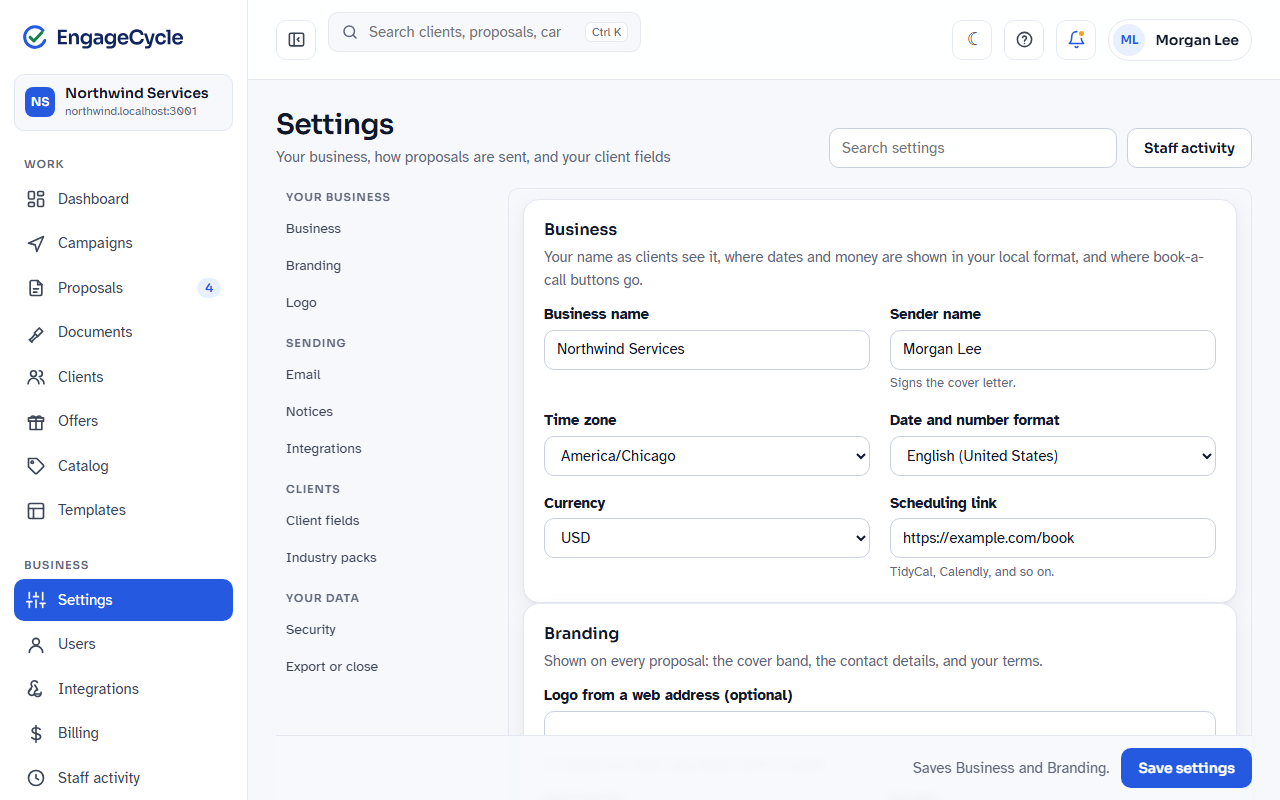
Business
- In Settings, go to Business.
- Fill in:
- Business name: your name as clients see it.
- Sender name: signs the cover letter on proposals.
- Time zone: used for every date and time, including reminders and the daily summary email.
- Date and number format: how dates and amounts look.
- Currency: the currency for all your prices.
- Scheduling link: where book-a-call buttons go (TidyCal, Calendly, and so on).
- Click Save changes in the bar at the bottom of the page.
Business, Branding, and Industry packs save together. Change what you like, then save once: the bar shows Unsaved changes and how many, and Discard puts everything back the way it was. You can also press Ctrl+S (Cmd+S on a Mac). If you try to leave the page with unsaved changes, it asks first.
Branding
Branding shows on every proposal: the cover band, your contact details, and your terms.
- In Settings, go to Branding.
- Fill in any of:
- Brand color: pick a color, or paste a hex value such as #0d164b.
- Tagline: shown on the cover band.
- Phone, Email, Website, Address: your contact details.
- Terms: your terms, shown wherever a template uses them. Format them like template text: headings, bulleted and numbered lists, bold, italic, underline, and links.
- Click Save changes.
A proposal keeps the terms it was sent with. Changing your terms changes what new proposals show, never one already sent or signed. A proposal you previewed before the change needs a new preview before it goes. Every change to your terms is in Staff activity, with the text before and after.
Your Address also matters for email: EngageCycle email needs a postal address, because it goes at the bottom of every email.
Logo
- In Settings, go to Logo.
- Choose a PNG, JPEG, WebP, or SVG file, up to 5 MB.
- Click Upload logo (or Replace logo if you already have one).
To take it off, click Remove logo.
If you haven't uploaded a logo, you can instead paste an address into Logo from a web address (optional) under Branding and click Save changes. We copy the image in once, so your proposals don't depend on that site staying up. If it can't be copied, nothing is saved, and the reason shows under the address.
The logo shows on your proposals, signed copies, and your page for clients.
This is where you choose how emails to your clients are sent: proposal links, reminders, signed copies, and expiry notices. Click Set up email under Email in Settings. Only owners can change anything on this page.
Choose how email is sent
You have these choices:
- Send with EngageCycle. The easiest way to start. Emails go out through EngageCycle under your business name, and replies come straight to you. Up to a daily limit; the rest wait for the next day.
- Your Microsoft 365 or Gmail mailbox. Sign in, and emails go from your own mailbox. Shown only when EngageCycle has it turned on.
- Your own email account. Emails go from an address on your own domain, through Resend, Postmark, Brevo, or your own mail server (SMTP).
- No sender. Your automation emails the proposal links. It gets every event either way.
You have one sender at a time: setting up a new one replaces the old one.
Send with EngageCycle
- On the Email page, under Send with EngageCycle, enter the address in Replies go to.
- Click Email me a code.
- Enter the 6-digit code from that email and click Turn on.
Clients see the email from your business name at an EngageCycle address. Your own address can't be the sender here (inboxes would reject it), so it's the Reply-To instead. If you haven't added a postal address under Branding, you're asked to do that first.
To use a different reply address before confirming, click Use a different address.
Once it's on, the section is called EngageCycle email and shows what clients see it from, where replies go, and the daily limit.
Use your own email account
- On the Email page, under Your own email account (Or use your own email account if you have no sender yet), choose the Email provider: Resend, Postmark, Brevo, or Your own mail server (SMTP).
- Enter Send from (an address on your own domain), and optionally a Sender name and Replies go to (optional).
- Enter the provider details:
- Resend or Brevo: the API key.
- Postmark: the Server API token. Optionally add the Account API token (optional) so we can show whether your domain is verified. Leave Transactional stream and Broadcast stream as they are unless you've set up different ones.
- SMTP: Server, Port, Encryption, Username, and Password.
- Click Save email account.
Saved keys and passwords are never shown again. The page shows only their last four characters. Leave the field blank to keep the saved one.
Send from your Microsoft 365 or Gmail mailbox
If your email is on Microsoft 365 (Outlook) or Gmail, you can sign in instead of entering a password. Email then goes out from your own mailbox, with a copy in your Sent folder.
- On the Email page, under Send from your Microsoft 365 or Gmail mailbox, click Sign in with Microsoft or Sign in with Google. Only owners can do this.
- Sign in to your mailbox and allow EngageCycle to send email for you.
- Back on the Email page, send yourself a test email (below) to finish.
No password is kept, only permission to send, which you can take back at any time from your Microsoft or Google account. If you do, or it expires, client emails wait and the owners get a notice: click Sign in with Microsoft again (or Google) and send a test, and the waiting emails go out. Bounce tracking isn't available for these mailboxes yet.
If you send through Microsoft 365 with Your own mail server (SMTP) (server smtp.office365.com), Microsoft is turning off password sign-in for SMTP at the end of December 2026. Switch to Sign in with Microsoft to keep sending.
If you don't see these buttons, they aren't turned on yet.
Verify and test
Nothing is emailed to clients until your sender is verified.
- Under Check and test, click Send a test email to (your address).
- Check your inbox. When it works, the top of the page says "Ready."
For your own account, click Check the domain to see the DNS records your provider wants. Add them at your domain's DNS host. A DMARC record also helps your email reach inboxes.
Switch back or remove a sender
- Go back to EngageCycle email: under Go back to EngageCycle email, click Switch to EngageCycle email, then enter the code we email you and click Switch. Your own account keeps sending until you enter the code; then it's removed.
- Remove sender: under Check and test, click Remove sender, then Yes, remove the sender. EngageCycle stops emailing clients, and your automation sends the links again.
Bounces and spam reports
When an email can't be delivered or a client marks it as spam, we stop emailing that address. These show under Bounces and spam reports as paused addresses, with why (Bounced, Reported as spam, or Asked to stop) and since when.
- EngageCycle email: bounce tracking is always on.
- Resend, Postmark, or Brevo: click Turn on bounce tracking. If it ever disconnects, click Connect again. For Resend you can also add the webhook in Resend yourself and paste its signing secret, then click Save signing secret.
- SMTP: mail servers don't report bounces, so bad addresses aren't skipped automatically.
- Microsoft 365 or Gmail mailbox: bounce tracking isn't available yet, so bad addresses aren't skipped automatically.
With SMTP or a mailbox, clients can still stop these emails with the link in each one.
To email a paused address again (for example, after the client fixes their mailbox), click Email again next to it.
With EngageCycle email, too many bounces or spam reports pause EngageCycle email for your business. Only EngageCycle support can resume it.
Pause email
Pausing stops every email to clients. They're held, not dropped. Signing links already sent keep working.
- Under Pause email, optionally enter a Reason (optional).
- Click Pause email.
A banner shows on every page while email is paused. To resume:
- Under Pause email, choose what to do with emails held in the last 7 days: Send held emails or Discard them.
- If some were held longer than 7 days, choose Discard them or Send them anyway.
- Click Resume email.
Held emails that no longer apply (the proposal was signed, withdrawn, replaced, expired, or sent again) are discarded automatically.
What clients receive
- Under What clients receive, set the reminder and sending options:
- Reminder, days before the link expires: 0 turns reminders off.
- Tell clients when their link expires
- Email clients their signed copy
- Email the link when I send: untick it to send in two steps. Create link shows the link to copy into any message, and Email it sends the email if you want it too. Campaign batches always email.
- Click an email to open it, and edit its Subject and Message. Each one says when it goes. There are:
- The client's emails: Proposal link, Reminder, New link, Signed copy, Expired notice, and Withdrawn notice.
- New customers on an offer: New customer code, New customer link, New customer: request received, and New customer: request declined.
- People copied on a proposal: Copied: proposal link, Copied: signed copy, and Copied: withdrawn notice. See Signers and copied people.
- Signers other than the client: Signer: proposal link, Signer: reminder, and the other Signer: emails.
- Click Save changes in the bar at the bottom of the page. Your email account has its own Save email account button.
Agreements and consent forms you send on their own have their own emails, under Agreements and consent forms sent on their own (Document link, Document reminder, and the rest). They start out the same as your proposal emails, saying "document", and you edit them the same way. Changing your proposal emails doesn't change them, and the other way around. See Documents.
Open What you can fill in to see the placeholders, such as {{client.first_name}}, {{business.name}}, {{link}}, and {{expires_on}}. A line with only {{link}} becomes a button. Every email ends with your business name, contact details, and a link to stop these emails.
Recent email at the bottom shows the last emails sent and whether each one went out.
Integrations
Webhooks, API keys, and the delivery log have their own page. Click Open Integrations under Integrations, or Integrations in the sidebar. See Integrations.
Notices
Owners set what new people get by email until they choose for themselves. Click Set notice defaults under Notices. See Notices. Staff see a link to their own My notices here instead.
Security
Owners only. Security is where you choose whether EngageCycle support needs your approval before opening your admin (Require my approval for support sessions or Stop requiring my approval), answer a waiting request with Approve or Decline, and end an open session with End now. It also lists recent sessions. See When EngageCycle support helps you.
Client fields
Client fields are details you keep about each client. They work straight away in imports, client pages, bulk edits, and in who sees an option or what it costs. Click Manage client fields under Client fields. Staff can look; owners make changes.
Add a field
- Under Add a field, enter a Name.
- Choose a Kind: Text, Whole number, Number, or Yes or no.
- For text, optionally list Choices (optional), one per line, to limit what can be entered.
- Click Add field.
Each field gets an Import column name, shown under it. Use that as the column header in a spreadsheet import.
To change a field, click Edit, then Save field. To delete one, click Remove. Clients keep their values, but the field disappears and any conditions that use it stop matching.
Fields from your industry packs
From your industry packs lists fields your packs provide. You can't change them, but you can click Hide on any you don't use. Hidden fields leave imports, client pages, bulk edits, and pickers. Clients keep their values, and Show brings them back.
Consents and documents
Consents are documents a client agrees to on a proposal (like an engagement letter or service agreement) and permissions (like agreeing to marketing emails).
- Under Add a consent, enter a Title.
- Optionally add a Basis (optional) (the policy or rule it rests on) and Text (optional) (what the client reads, above its checkbox).
- Tick Required to sign if the client must agree before signing.
- Click Add consent.
Place consents on a proposal with the Consent documents block in your template. Boxes are never ticked for the client. Each consent also adds a yes or no column to imports.
To change the text later, click Edit the text (or Add the text clients read), edit it, tick or untick Required to sign, and click Save. Changing it makes a new version; proposals already sent keep the text they showed. To take a consent off the list, click Remove.
These consents go on a proposal. To send an agreement or a consent form to a client by itself, see Documents.
Download as a pack
Owners can download their fields, consents, and chosen templates as a pack, to set up another business the same way.
- Under Download as a pack, enter a Short name for the pack and a Pack name.
- Tick the templates to include under Templates to include.
- Click Download pack.
Only made-up sample clients are included, never your real ones.
Industry packs
Each pack adds client fields and starter templates for a kind of business. General is always on.
- Under Industry packs, tick the packs you want.
- Click Save changes in the bar at the bottom of the page.
To copy a pack's starter templates into your templates, click Add starter templates next to it. Templates you already have are left as they are, including ones you've edited.
Credits
Credits aren't a section of Settings: you see them in the top bar and, for owners, on Billing. A credit is used the first time a proposal, engagement letter, consent, or walkthrough reaches a client. See What's a credit? for the full explanation. Once credits are set up for your business, a chip in the top bar shows how many you have, for example "Credits 212 left". It turns amber at 80% used, and red for "Overage 12 of 100" or "Out of credits".
These use one credit each:
- Sending a proposal, an agreement, or a consent form (emailing the link, creating a link to copy, or signing in person).
- Each proposal or document in a campaign batch.
- A new customer who confirms their email on an offer and gets a proposal.
These don't use a credit: drafts, previews, test sends, sending the same link again, copying a link, reminders, and a corrected version that replaces one you sent. One you withdraw before the client opens it gets its credit back.
Before anything uses a credit, you're asked to confirm, with what you'll have left after.
Click the chip to see the details, and What's a credit? for the short version. Everyone sees how many are used and left. Owners also see the plan, the plan year, any extra packs and when they expire, what happens when credits run out, and a Plan and billing link. Unused included credits don't roll over, and packs last 12 months. To get more, owners click the button at the bottom of the panel (for example Buy a pack, Raise your cap, or Contact us for more, depending on your plan). Staff are told to ask an owner.
When you're out of credits, a banner says what's held. Depending on your plan, new proposals can't be sent or ask you to pay first, the next campaign batch waits, and your offers stop taking new requests. See Billing and your plan.
Export or close
Export everything
Owners can download your clients and proposals as spreadsheets, plus every signed PDF with its certificate.
- Under Export or close, click Start export.
- We email you a link when it's ready. You'll also see Download next to it here.
The download works for 7 days, for owners.
Close your business
- Under Close this business, type your business name in the confirm box.
- Optionally say Why (optional).
- Click Close (your business) and confirm.
When closed, nothing is sent, links open only signed copies, and your webhook gets nothing. Your team can still sign in for 30 days to look around, and owners can export. After that it's deleted, except signed records, which are kept as the terms say.
To change your mind within 30 days, click Reopen (your business). Everything is as it was. If EngageCycle support closed your business, contact support to reopen it.
Good to know
- Save changes in the bar at the bottom saves Business, Branding, and Industry packs together, or nothing: if something needs fixing, nothing is saved, each problem is marked next to its field, and what you typed is still there. Actions such as uploading a logo or adding starter templates have their own buttons.
- Changing Currency or Time zone affects how everything is shown from then on. Proposals already sent keep their prices.
- A secret or API key is shown only once. If you lose it, rotate the secret or create a new key.
- With no email sender, nothing is emailed to clients by EngageCycle. Your automation gets every event and can send its own emails.
- Staff can't pause email. If something goes wrong, ask an owner.
- Removing a client field doesn't delete clients' values; hiding a pack field doesn't either.