

Template blocks
This page describes every block you can add to a proposal template: what the client sees, its settings in the side panel, how many you can have, and how it looks on screen and in the PDF. Agreement and consent templates use fewer blocks (see Blocks on agreement and consent templates).
For how to add, move, and remove blocks, see Templates.
Before you start
- Blocks are in the palette on the left of the editor, in two groups: Content and Proposal. On an agreement or consent template the second group is called Agreement or Consent. Some tiles use a shorter name than the block (for example the Sign-off tile adds a Sender signature block). Both names are in the table below.
- Select a block on the page to see its settings in the Block tab of the side panel.
- Content blocks are things you write or place. Proposal blocks fill in from each proposal: its client, its build (packages, prices, add-ons), and its dates.
- In the editor, What's the difference? under the Proposal group draws each proposal block as the client sees it.
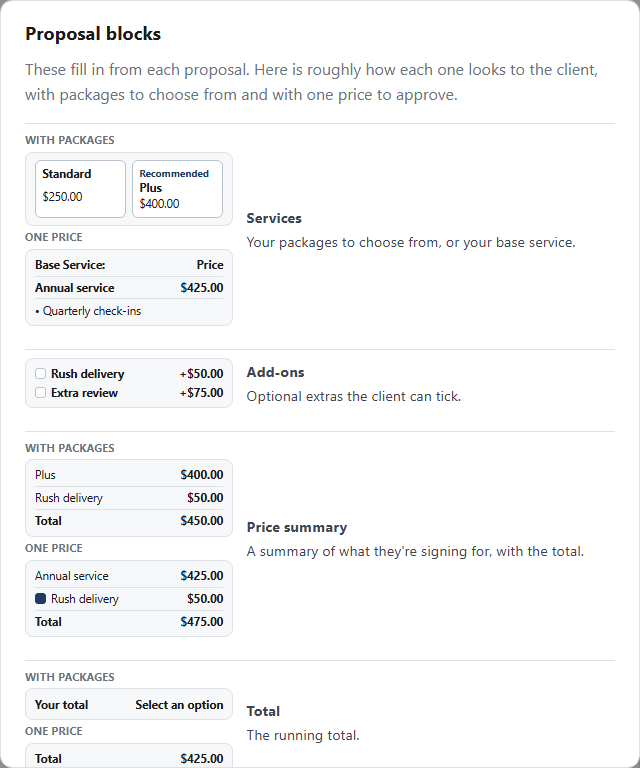
Quick reference
| Block (tile name) | Group | What it's for | How many |
|---|---|---|---|
| Heading | Content | A title for a page or part of a page | Any number |
| Text | Content | Paragraphs and lists, with merge fields | Any number |
| Image | Content | A picture, with alt text for screen readers | Any number |
| Video | Content | A YouTube, Vimeo, or Loom video that plays when the client presses play | Any number |
| Two columns | Content | Headings, text, or images side by side, stacked on a phone | Any number |
| Button link | Content | A button to a web page, email, or phone number | Any number |
| Divider | Content | A thin line between parts | Any number |
| Spacer | Content | Empty space, small, medium, or large | Any number |
| Page break | Content | Starts a new page in the PDF, ignored on screen | Any number |
| Header | Content | Your logo and tagline across the top of a page | One per page |
| Callout | Content | A highlighted message, like a thank-you | Any number |
| Sender signature (Sign-off) | Content | Your name and business, like the end of a letter | Any number |
| Services | Proposal | Your packages to choose from, or your base service | At most one |
| Add-ons | Proposal | Optional extras the client can tick | At most one |
| Price summary | Proposal | A summary of what they're signing for, with the total | At most one |
| Total | Proposal | The running total | At most one |
| Note to client (Note) | Proposal | The note written on each proposal, hidden when there's none | At most one |
| Client details | Proposal | Who it's for, the period, and the respond-by date | Any number |
| Price comparison (Price change) | Proposal | Last season next to this season | Any number |
| Respond by | Proposal | The deadline | At most one |
| Consent documents (Documents) | Proposal | Your consent documents to agree to | At most one |
| Initials | Proposal | Confirm they read a section | Any number |
| E-sign consent (E-sign) | Proposal | Agreement to sign electronically | Exactly one |
| Signature | Proposal | Name and sign button | Exactly one |
| Decline option (Decline) | Proposal | Lets them say no | At most one |
| Packages | Proposal | The older package cards; Services does this and more | At most one |
| Questions | Proposal | The offer's intake questions (older offer templates only) | Exactly one, where allowed |
| Email verification (Verify email) | Proposal | Confirms the prospect's email before signing (older offer templates only) | Exactly one, where allowed |
Blocks you need to publish
Every proposal template needs these before you can publish it:
- a Signature block
- a Services block or a Price summary (a Packages block also counts, for older templates)
- the E-sign consent block
You also need the Consent documents block if you marked any consent document as required in Settings. The Publish tab lists anything missing, with Add it to add it for you. See Templates for the full checklist.
An agreement template needs only the Signature and E-sign consent. A consent template needs those and the Decline option.
Blocks on agreement and consent templates
An agreement or a consent is signed on its own, with no prices, so its palette shows only the blocks it can have. See Documents for sending one.
- Agreement: every block except the ones about prices (Services, Add-ons, Price summary, Total, Price comparison, and Packages) and the older offer blocks (Questions and Email verification).
- Consent: Header (logo and name only, no tagline), Heading, Text, Divider, Spacer, E-sign consent, Signature, and Decline option. The client signs it and the date shows beside their name, or declines it with No thanks.
Blocks that can't go together
- Services and Packages: both hold the package choices, so a template can have only one of them. The tile for the other says "Can't go with Services, which is already placed" (or Packages).
- Price summary with ticks and Add-ons: if Let clients tick add-ons here is on in the Price summary and you also place an Add-ons block, each add-on shows twice. The tick boxes stay in step and the add-on is only counted once, but one place is clearer. The side panel warns you and offers Turn off ticks in the Price summary or Remove the Add-ons block.
How blocks hide themselves
Several Proposal blocks show nothing when there's nothing to show, so the client never sees an empty heading. On the canvas, a hidden block gets a dashed note (for example "Add-ons: none in the build you're previewing. Proposals with add-ons show them here."). Clients never see these notes. Switch Preview as: to Packages to choose from, which fills every block, or choose a returning client under Client.
Content blocks
Heading
What the client sees: a title, in one of three sizes. It can include merge fields, such as [Client first name].
Settings:
- Size: Large title, Section heading, or Small heading.
- Text: the heading's words. You can also click the heading on the page and type. Insert field… adds a merge field.
Screen and PDF: the same.
Text
What the client sees: paragraphs, lists, and formatting, with merge fields filled in for each client.
Settings:
- Edit text: opens the text for editing on the page (or click the text). The toolbar has Text, Heading, and Subheading, B, I, U, Link, • List, 1. List, and Insert field….
- Name (for your reference): a name only your team sees. If it matches the name of an Initials section, removing the Text block asks whether to remove its Initials too.
Screen and PDF: the same.
Image
What the client sees: your picture, with an optional caption under it.
Settings:
- Choose a picture, then Replace image to change it. PNG, JPEG, or WebP, up to 5 MB. Pictures over about 2,400 px wide work but make the PDF bigger, and the panel says so.
- Alt text (required to publish): describes the picture for someone who can't see it.
- Width: Full, Wide, or Inline (half).
- Caption (optional): can include merge fields.
When you add it: the block lands as a placeholder ("Add a picture"). Clients never see a placeholder: you can't publish until every Image block has a picture and alt text.
Screen and PDF: the same picture, kept together on one PDF page. The picture becomes part of the signed copy, so it can't change after sending.
Video
What the client sees: a still picture of the video (its poster) with a play button and an optional caption. Nothing loads from the video site until the client presses play.
Settings:
- YouTube, Vimeo, or Loom link: paste the link and click Add video. To swap it later, use Change the link and Use this link.
- Caption (optional): can include merge fields.
If the video site doesn't give a poster, the block shows its own dark frame with the site's name and the video's title. A Loom that isn't shared publicly gets a warning: "This Loom isn't shared publicly, so clients may be asked to sign in to Loom. Set its sharing to anyone with the link." You can still publish.
When you add it: the block lands as a placeholder ("Add a video link"). You can't publish until every Video block has a link.
Screen and PDF: on screen the video plays in the page. In the PDF, the poster prints with "Watch the video:" and the link under it. In the editor and in previews, the poster links to the video on its own site.
Two columns
What the client sees: two columns side by side. On a phone they stack, left column first.
Settings: the side panel lists the Left column and Right column. Each column holds up to six headings, text blocks, or images.
- Add heading, Add text, or Add image adds to that column.
- × removes an item from the column.
- Headings and images (with their Alt text (required to publish)) are edited in the panel; text is edited on the page.
You can also drag a Heading, Text, or Image block into or out of a column. A new block starts with a "Left column" and a "Right column" heading, each with some text.
Screen and PDF: side by side on a computer and in the PDF, kept together on one PDF page; stacked on a phone.
Button link
What the client sees: a button in your accent color. It opens in a new tab.
Settings:
- Button text: up to 80 characters, for example "Book a call". It can include merge fields.
- Link: must start with https://, mailto:, or tel:. For example a booking page, an email address, or a phone number.
When you add it: the side panel asks for the text and link first. Click Add button to place it, or Cancel.
Screen and PDF: on screen, a button. In the PDF, the button with its address printed under it.
Divider
What the client sees: a thin line between parts of the page.
Settings: none.
Screen and PDF: the same.
Spacer
What the client sees: empty space.
Settings: Height: Small, Medium, or Large.
Screen and PDF: the same.
Page break
What the client sees: nothing on screen.
Settings: none.
Screen and PDF: in the PDF, what comes after it starts on a new page. Each page of your template already starts a new PDF page, so you only need a page break to split a long page.
Header
What the client sees: a band across the top of the page with your logo (or your business name, if you have no logo) and your tagline. How the band looks (logo left, centered, color band, or a picture) is set in the Style tab under Header. See Templates.
Settings:
- Show logo
- Show business name
- Show tagline
All three are on to start. Turn all three off when your header picture already has your logo or name in it. On a consent template, turn Show tagline off: a consent's Header shows only your logo and name, and it can't be published with the tagline on.
How many: one per page. It always sits first on its page and can't be moved down. A page that has one shows "This page already has one" on the tile. To change the logo, name, or tagline themselves, go to Settings.
When it hides: with all three parts off and no header picture, the Header shows nothing.
Screen and PDF: the same.
Callout
What the client sees: a highlighted box with your message, for example a thank-you.
Settings: the same as Text: Edit text (with the same toolbar and merge fields) and Name (for your reference).
Screen and PDF: the same.
Sender signature
The tile is called Sign-off.
What the client sees: your Sender name and your business name, like the end of a letter. Both come from Settings.
Settings: none.
Screen and PDF: the same.
Proposal blocks
Services
What the client sees: depends on each proposal's build. With packages to choose from, one entry per package, each with a choice control and none chosen for the client. A package can carry a badge, such as "Recommended", set on each package in the proposal builder. With one price to approve, the base service and its price, with nothing to choose.
Settings:
- Show as: Cards, Table, or List.
- Show what's included: lists each line's "What's included" points (on to start).
- Show each line's price: shows the price of each line inside a package (off to start).
- Heading: replaces the heading above the services. Left empty, a one-price proposal in a table shows "Base Service:", and a packages proposal shows its package question.
How many: at most one. Can't go with Packages.
Required to publish: a Services block or a Price summary.
Screen and PDF: on screen the client picks a package and the totals update. In the signed PDF, the client's choice shows as they made it.
Add-ons
What the client sees: the build's optional extras. Each has a tick box (never ticked for the client) or a quantity, its name, description, what's included, and price. An add-on that only goes with certain packages says "Available with" and the package names.
Settings:
- Show as: Rows, Table, or Cards. Add-ons blocks from older templates also offer Older list, which keeps their original look until you pick another.
- Heading: the title above the list. Left empty, it says "Optional add-ons" ("Add if you'd like" on Older list).
How many: at most one.
When it hides: when the build has no add-ons.
Watch for: if the Price summary also lets clients tick add-ons, each add-on shows twice. The panel offers a fix (see Blocks that can't go together).
Screen and PDF: on screen the client ticks add-ons and the total updates. In the signed PDF, their choices show as they made them.
Price summary
What the client sees: a live summary of what they're signing for: the chosen package or base service, the chosen add-ons, then a one-time total and a total for each recurring billing frequency (never added together), and any rates billed as used. Before a package is chosen it says "Choose an option above and it will appear here."
Settings:
- Service heading: the heading over the service rows. Left empty, it says "Base service".
- Add-ons heading: the heading over the add-on rows. Left empty, it says "Optional add-ons".
- Let clients tick add-ons here: puts a tick box or quantity on each add-on in the summary. Off to start, so only the add-ons the client chose show, as plain rows.
The panel warns "Clients can't choose add-ons anywhere yet." when ticks are off and there's no Add-ons block.
How many: at most one.
Required to publish: a Price summary or a Services block. A Price summary on its own suits proposals with one price to approve; to let clients choose between packages, add a Services block too.
Screen and PDF: on screen the totals update as the client chooses. The PDF shows the final summary.
Total
What the client sees: "Your total" and the amount, updated as they choose. Before a package is chosen it says "Select an option". If the build has more than one billing frequency (for example one time and monthly), it lists a total for each, one time first, never added together.
Settings: none.
How many: at most one.
Screen and PDF: on screen it updates live. The PDF shows the final total.
Note to client
The tile is called Note.
What the client sees: the note you write on each proposal in the proposal builder. The note shows only where this block is, so move the block to move the note. A template without one shows no note, and the proposal builder says so when you write one.
Settings: none.
How many: at most one.
When it hides: when a proposal has no note.
Without this block: proposals on the template show no note. Templates made before October 12, 2026 that showed the note by themselves were given this block in the same spot, so nothing moved.
Screen and PDF: the same.
Client details
What the client sees: a short summary: Prepared for (the client's name), the period, Respond by (the date), and, on a real proposal, the Proposal number. Previews don't show a proposal number.
Settings: Period label: the label for the period line. Left empty, it says "Period".
How many: any number.
Screen and PDF: the same.
Price comparison
The tile is called Price change.
What the client sees: last period's price next to this one: the previous price, then the new total (which updates as they choose).
Settings:
- Previous price label: for example "Previous price".
- New price label: for example "New price".
- Shown when there's no previous price: only used by Price comparison blocks in older templates. Current ones hide instead (see below).
- Shown before an option is picked: shown in place of the new total until the client chooses (for example "Select an option").
How many: any number.
When it hides: when the client has no previous price, such as a new client. Choose one of your returning clients under Client, above the page, to see it.
Screen and PDF: on screen the new total updates live. The PDF shows the final total.
Respond by
What the client sees: "This proposal is open until [date]."
Settings: none. How long a client has to respond is set on each proposal.
How many: at most one.
When it hides: until the date is set, which happens when the proposal is previewed in the proposal builder. On the canvas it shows a dashed note instead.
Screen and PDF: the same.
Consent documents
The tile is called Documents.
What the client sees: each consent document you added in Settings (for example an engagement letter), with its title, its full text, and a tick box:
- a required document says "I have read and agree to the [title]." The client must tick it to sign.
- an optional document is marked "(optional)" and says "I agree to the [title]. This is optional."
No box is ever ticked for the client.
Settings: none here. Edit them in Settings opens the place to add and change documents.
How many: at most one.
Required to publish: only when you've marked a document as required.
When it hides: when your business has no consent documents.
Screen and PDF: the same text. The signed PDF's certificate records which documents the client agreed to.
Initials
What the client sees: a small "Initial" box next to "I've read the [section name] section".
Settings:
- Section name: the name in that sentence.
- Client must initial: when on, the client must type their initials to sign.
How many: any number, one per section.
When it hides: when Client must initial is off.
Removing text: if you remove a Text block whose Name (for your reference) matches a section name, the editor asks whether to remove the Initials too: Remove both, Keep the Initials, or Cancel.
Screen and PDF: the same. In the signed PDF, the client's initials show in the box.
E-sign consent
The tile is called E-sign.
What the client sees: a tick box with a short agreement to do business and sign electronically, and to get a paper copy on request. EngageCycle provides the wording; it can't be edited.
Settings: none.
How many: exactly one. You can't remove it, only move it.
Required to publish: yes.
Screen and PDF: the same.
Signature
What the client sees: "Type your full name to sign", a signature line, their name and today's date, and the sign button. Under it: "A copy of what you sign is emailed to you and available to download right after."
Settings: Button text: the sign button's words. Left empty, it says "Sign and accept".
How many: exactly one. You can't remove it, only move it.
Required to publish: yes.
Screen and PDF: on screen, the client types their name and signs. The signed PDF shows "Signed electronically by" with the typed name, the client's name, and the date and time signed.
Decline option
The tile is called Decline.
What the client sees: "Not continuing this time?", which opens a short form: a Reason to choose, an optional note, and a Decline this proposal button (or Decline this agreement on an agreement).
On a consent it reads No thanks instead, with an optional note and a No thanks button, and no reasons to pick.
Settings: Reasons the client can pick. Edit each reason, reorder with the arrows or by dragging, remove one with ×, or click Add a reason. Your decline report groups by these reasons, and staff pick from them when recording a decline.
How many: at most one.
Screen and PDF: on screen until the proposal is signed. It never appears in the PDF.
Packages
What the client sees: the older package cards, for templates made before Services.
Settings: none. Packages, prices, and add-ons come from each proposal's build.
How many: at most one. Can't go with Services. Use Services in new templates: it does the same and more.
Required to publish: a Packages block counts in place of Services, so older templates can still be published.
Questions and Email verification (older offer templates)
Questions (the offer's intake questions) and Email verification (the Verify email tile) only appear in the palette on templates that still have intake questions from before offers asked their own. On those templates there must be exactly one of each. They show nothing on a proposal.
Offers now set their own questions in Offers. The Questions block's panel has Go to Offers.
Good to know
- Proposal blocks are colored differently on the canvas and in the palette, so you can tell which ones fill in from each proposal.
- A greyed tile still helps. For a block you already have one of, clicking the tile jumps to it.
- Copy is blocked for one-only blocks. Copy is disabled for blocks you can have only one of, and for the Header.
- Nothing is ever chosen for the client. Packages, add-ons, consent documents, and tick boxes all start empty. A "Recommended" badge is fine.
- Older templates keep their look. Blocks saved before newer settings existed (such as Older list on Add-ons) render as they always did, so sent proposals never change.
- Templates that still set their own prices can't take Image, Video, Two columns, Button link, Divider, Spacer, Page break, Services, Add-ons, Total, Note to client, Respond by, or Consent documents. Move their prices to a preset first.