

Templates
A template is the look and wording of a proposal (or of an agreement or consent you send on its own): its pages, text, pictures, and where the prices and signature go. This page covers making a template, designing it in the editor, publishing it, and keeping your list of templates tidy.
Templates never hold prices. A template is how your proposals look and read; prices come from your catalog. Packages, prices, and add-ons come from each proposal's build, made in the proposal builder and often started from a preset. The template decides how they look.
Before you start
- Add your logo, tagline, and Sender name in Settings. The Header and Sign-off blocks show them.
- If you want clients to tick to agree to your own documents inside a proposal (for example an engagement letter), add them in Settings under Client fields, in Consents and documents. To have a client sign an agreement or a consent on its own, make an Agreement or Consent template instead and send it from Documents. See Documents.
- Anyone on your team can make and edit templates. Only an owner can publish one.
Make a new template
Open Templates and click New template.
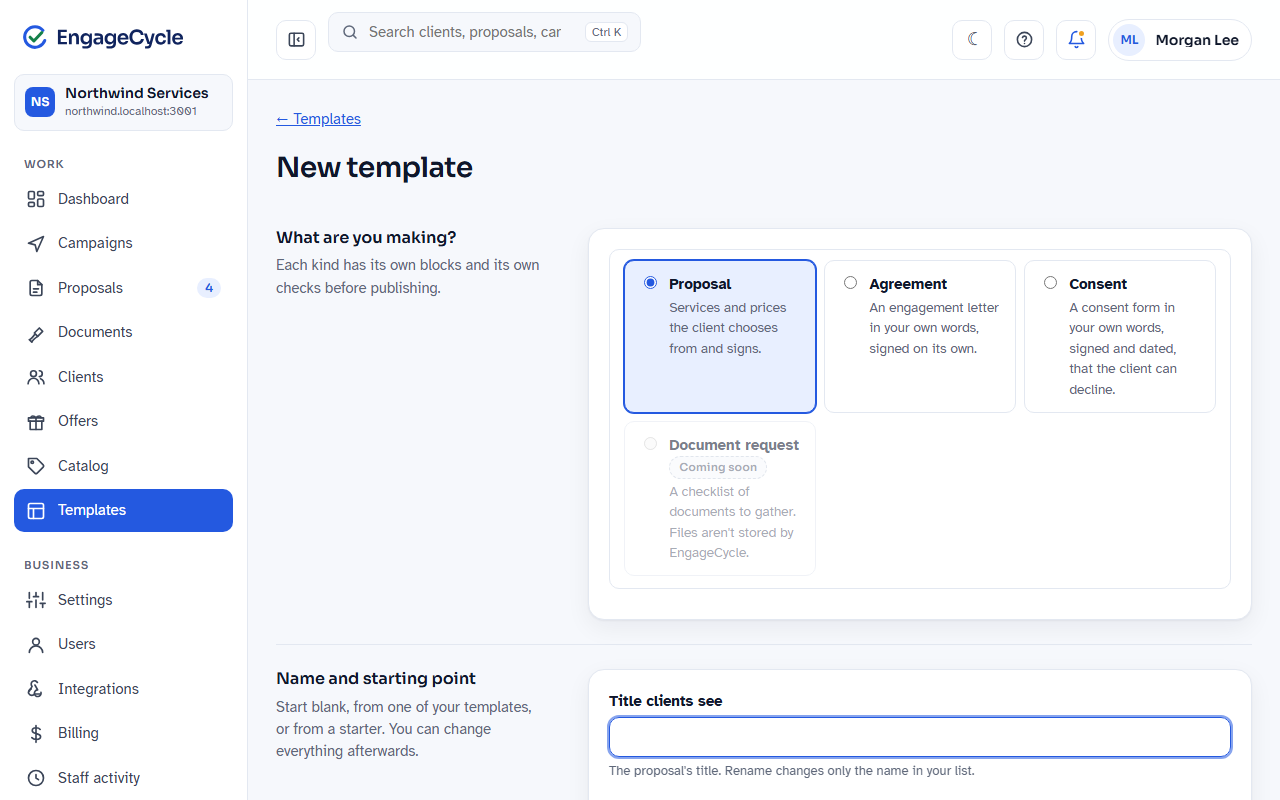
Under What are you making?, choose the kind:
- Proposal: services and prices the client chooses from and signs.
- Agreement: an engagement letter in your own words, signed on its own.
- Consent: a consent form in your own words, signed and dated, that the client can decline.
Agreement and Consent can be chosen when your plan includes them; otherwise they show Coming soon. Document request shows Coming soon and can't be chosen yet.
Under Name and starting point, type a Title clients see (you can change it later in the editor).
Under Start from, pick one. The page starts on A copy of one of yours, set to your default template for that kind; choose A starter look for a fresh start from a pack's look.
- A starter look (proposals only): Letter (a cover letter first, then pricing), Modern (a header picture, a short intro, pricing near the top), or Compact (one page, good for quick one-off proposals). Choose the one you want in Starter look.
- A copy of one of yours: its pages, wording, and look. Choose it in Template to copy, which lists your templates of the same kind. Archived templates are listed too.
- Blank: for a proposal, a short letter, pricing, terms, and a signature, to make your own; choose the Type of proposal: Renewal, Upgrade, Win-back, or One-off. For an agreement or consent, a heading, a place for your own wording, the e-sign consent, and a signature (a consent also gets the Decline option).
Click Create and edit. The editor opens on a draft.
You write all the wording of an agreement or consent yourself. EngageCycle doesn't write or review it. A blank one's text starts as a placeholder that says TODO, and it can't be published until you replace it.
Find your way around the editor
The editor shows the proposal exactly as the client will see it.
- Top bar: Templates (back to the list), the template's title and status (Draft, Unpublished changes, or Live), the save status (All changes saved), N things to finish while anything is left before publishing, Undo, Redo, Learn more (opens Template blocks), Preview, and Publish. The More menu (⋯) has the Editor switch, Keyboard shortcuts, and Theme, and on a draft of a live template, Discard unpublished changes.
- Left: the block palette. Two groups of tiles: Content (headings, text, pictures, layout) and Proposal (blocks that fill in from each proposal, such as Services and Signature). On an agreement or consent template, the second group is called Agreement or Consent, and the palette shows only the blocks that kind can have. Hover a tile to see what it does. What's the difference? under the second group shows a small drawing of each proposal block.
- Middle: the page. Your document, page by page.
- Right: the side panel, with three tabs: Block, Style, and Publish.
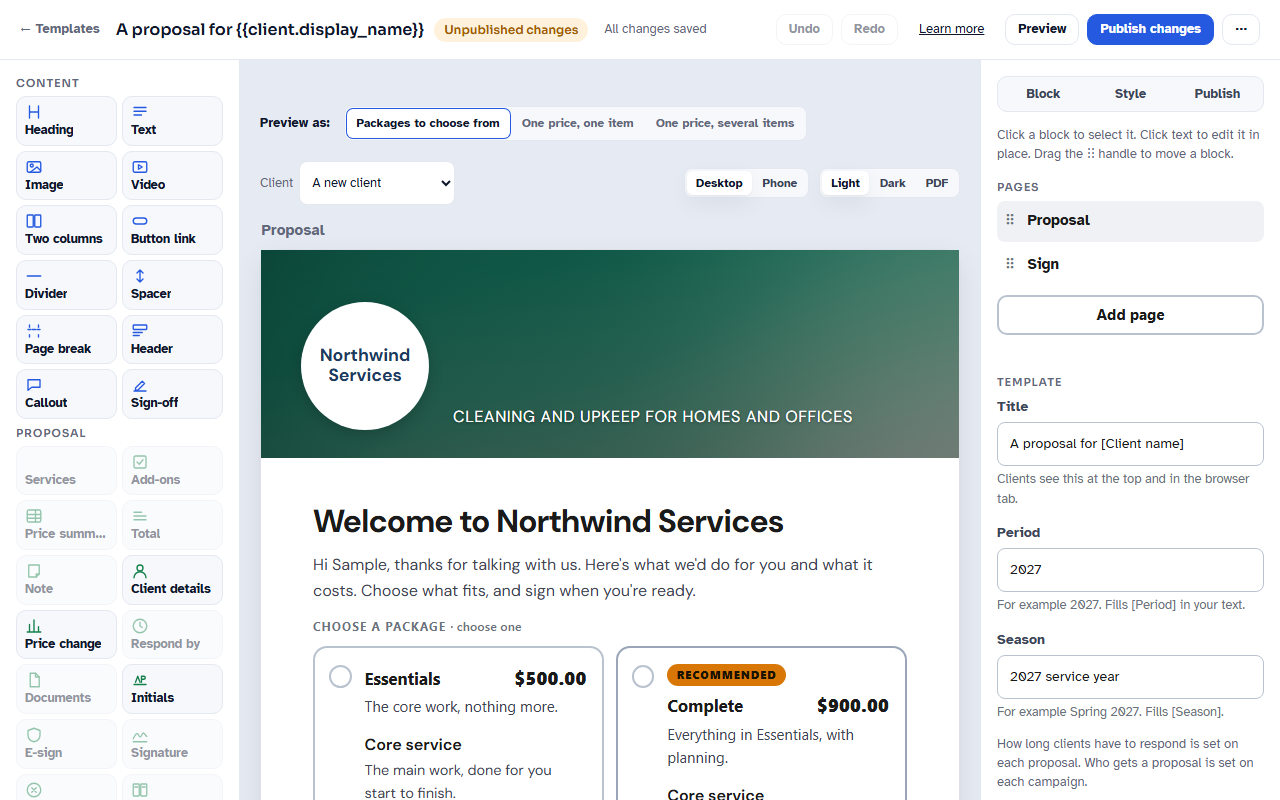
Changes save on their own as you work. There's no Save button.
On a phone, tap Add block to open the palette.
Add, move, and remove blocks
- Drag a tile from the palette onto the page. A blue line shows where it will land. Or click a tile, and the block is added below the block you have selected (or at the end of the page you're looking at).
- To move a block, drag its ⋮⋮ handle, or select it and click Up or Down. You can also press Alt+Up or Alt+Down.
- To copy a block, select it and click Copy. The copy goes right below it.
- To remove a block, select it and click Remove (or press Delete). A message appears with Undo if you change your mind.
Some tiles are greyed out:
- A block you can only have one of, and already placed, shows Already on the page. Clicking the tile jumps to that block.
- A block that can't sit beside another one says why, for example "Can't go with Services, which is already placed".
You can't remove the Signature or E-sign consent block. Every template needs one of each, so you can move them instead.
For what every block does, see Template blocks.
Work with pages
Clear the selection (press Esc until no block is selected). The Block tab then shows:
- Page name: the name of the page you're on.
- Pages: every page in order. Drag ⠿ to reorder, double-click a name to rename it, or click × to delete a page.
- Add page: adds a new page after the current one.
- Template: the Title clients see at the top and in the browser tab, plus Period and Season, which fill the [Period] and [Season] merge fields in your text.
A page that holds the Signature or E-sign consent can't be deleted until you move that block to another page.
Edit text
- Click a Heading, Text, or Callout block on the page to edit it in place (or select it and click Edit text in the side panel).
- Use the toolbar above the text:
- Text, Heading, or Subheading for the style of the line.
- B, I, and U for bold, italic, and underline.
- Link to link the selected words. Links must start with https://, mailto:, or tel:.
- • List and 1. List for bulleted and numbered lists.
- Insert field… to add a merge field (below).
- Click Done (or press Esc) when you're finished.
Headings use the Size setting in the side panel: Large title, Section heading, or Small heading.
Merge fields
A merge field fills in for each client. In the editor it shows as a small chip, like [Client first name]. Choose one from Insert field…:
Client first name, Client name, Business name, Sender name, Business phone, Business email, Business website, Terms (from settings), Period, Season, Proposal ID, Expiry date, Prior price, and Today's date.
For example, "Hi [Client first name], thanks for another year with Northwind Services." reads "Hi Alex, thanks for another year with Northwind Services." on Alex Rivera's proposal.
Change the look in the Style tab
Open the Style tab in the side panel. Each choice applies to the whole template, on the signing page and in the PDF.
- Accent color: Brand (your brand color, the default), one of six colors, or Other to pick any color.
- Heading font and Body font: Default or one of a short list. Fonts are embedded in the PDF, so it looks the same everywhere.
- Corners: Default, Square, or Rounded.
- Header: Logo left, Centered, Color band, Color band with cover image, Banner image, or Image only.
- For the picture headers, click Upload a picture (or Replace picture).
- If your picture already has your logo or name in it, the tab asks Your image has its own logo or name? Click Hide ours to turn off your logo, name, and tagline in the Header block, or Keep ours.
- Add Alt text for the picture. It's required to publish for Banner image and Image only, and for Color band with cover image when your logo, name, and tagline are all hidden.
- Page width: Standard or Wide.
The signing page follows the client's light or dark setting. The PDF is always light. Your accent color is adjusted in dark mode so it stays readable.
Proposals already sent keep the look they were sent with.
Preview your template
Above the page:
- Preview as: the packages and prices shown while you design. Pick Packages to choose from, One price, one item, or One price, several items, or pick one of your presets under or a preset. The bar stays at the top while you scroll. On a narrow screen it folds into one line showing the one in use; tap it to change. The editor remembers your choice for this template in this browser.
- Client: A new client (no history), A sample business (a made-up business with a contact and a title, to see how a business signs), or one of your clients, so merge fields and last season's price fill in. See Proposals for businesses.
- Desktop or Phone: the Phone view shows exactly what clients see on a phone. Switch back to Desktop to edit.
- Light, Dark, or PDF: how the page looks in each.
Try both a packages sample and a one-price sample. The same template is used for both, and some blocks change what they show.
A block that shows nothing for what you're previewing (for example Add-ons when the build has none) gets a dashed note on the canvas saying when it fills in. Clients never see that note.
For the full page in a new tab, click Preview in the top bar. It uses the same Preview as: choice and client, and shows a banner, "Preview: this is what the client sees. Nothing can be submitted from this page." The Preview as: bar there is for you only; clients never see it.
Publish a template
A draft can't be used for proposals, campaigns, or offers until it's published.
- Open the Publish tab. It lists what publishing checks, with ✓ for done and ! for still to do. The top bar also shows N things to finish while anything is left; click it to open the tab.
- Fix each item. Add it adds the missing block; Show me selects the block that needs attention.
- When the tab says "Everything is ready to publish.", click Publish (or Publish changes for a template that's already live) and confirm.
What the Publish checklist asks for
Every template needs:
- Nothing still says TODO: no placeholder text left from a starter or a blank template.
- Signature block: "Add a Signature block."
- E-sign consent: "Add the E-sign consent."
Each kind also needs:
- Proposal: Services or Price summary: "Add a Services block (or a Price summary)." (A Packages block also counts, for older templates.)
- Consent: Decline option: "Add the Decline option: a client can always say no to a consent." A consent's Header shows only your logo and name, so turn its tagline off.
- Agreement: nothing more.
And, only when they apply:
- Consent documents (proposals and agreements): if you marked any consent document as required in Settings, "Add the Consent documents block: you marked [document names] required."
- A picture in every Image block: "Choose a picture for the Image block."
- Alt text on the image (or Alt text on every image): "Add alt text to the image (it describes the picture for screen readers)."
- Alt text on the header picture: "Add alt text to the header picture in the Style tab (it describes the picture for screen readers)."
- A link in every Video block: "Add the video's link to the Video block."
Change a published template
A published template can't be edited directly. Editing makes a draft, and nothing changes for clients until you publish that draft.
- Click Edit on its row in the list. Or open the template and click Edit in the top bar.
- A draft opens with the status Unpublished changes. Make your changes, then click Publish changes.
To throw a draft away, open the More menu (⋯) and click Discard unpublished changes. The live template stays as it is.
Why a sent proposal never changes
When you send a proposal, its wording, look, prices, and pictures are fixed. Publishing changes later affects new proposals only. Proposals already sent, and signed copies, keep showing exactly what the client saw and signed.
Manage your templates
Open Templates to see every template, with its Kind, Status (Draft, Published, Published, with changes, or Archived), Used by (for example "Signed by 12 clients, 3 open proposals"), and Last changed. A Default tag marks the template picked first for that type of proposal.
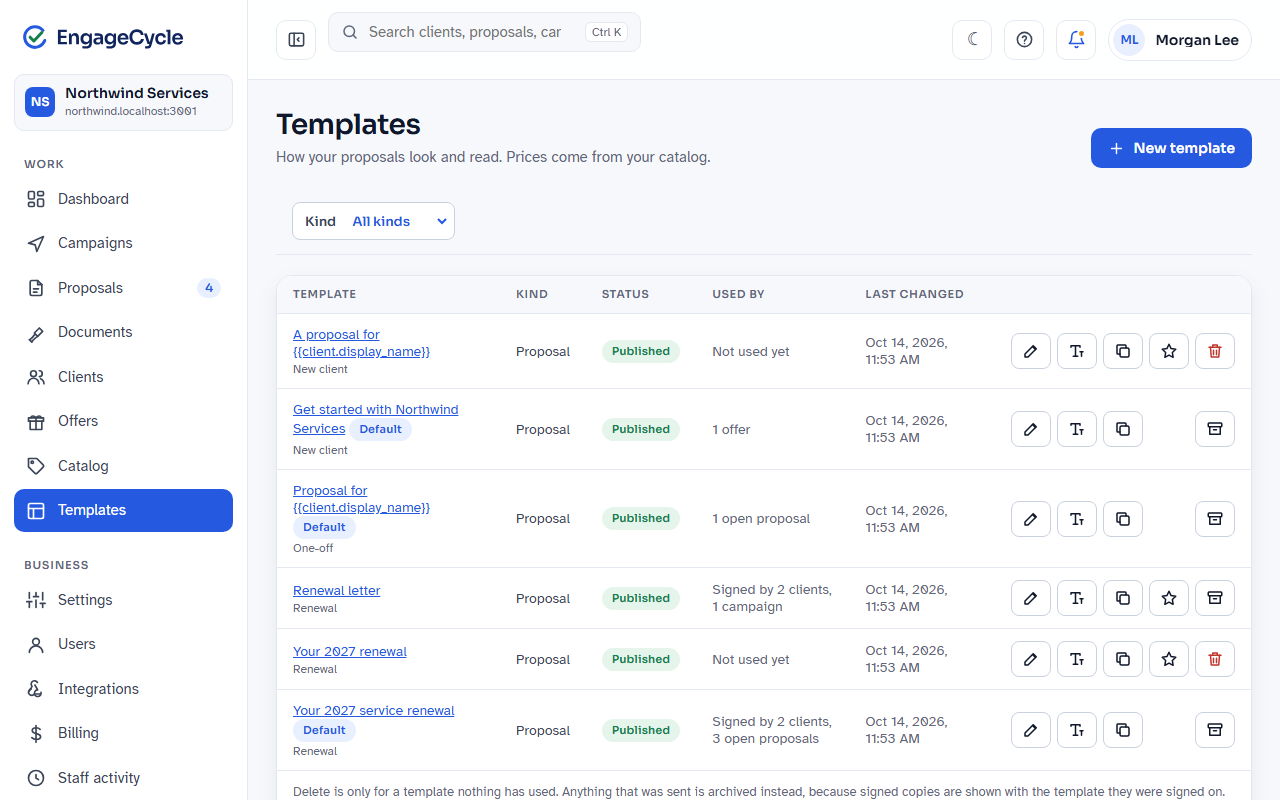
Use the Kind filter (it lists the kinds you can make) to show one kind of template, such as Agreement. Click Clear, or choose All kinds, to see them all again.
Rename
- Click Rename on the template's row.
- Type the new Name in your list (only your team sees it) and click Save name.
Rename changes the name in your lists only. Clients still see the title set in the editor.
Duplicate
Click Duplicate. You get a new draft named "Copy of [name]" with the same pages, wording, and look, and the editor opens on it. Nothing is sent until you publish.
Make default (owners)
Click Make default on a published template. It's picked first when you start a proposal or campaign of that type.
Archive, restore, and delete (owners)
- Archive hides a template from new proposals, campaigns, and offers. Everything already using it keeps working. You can still copy an archived template with A copy of one of yours.
- Restore brings an archived template back.
- Delete shows only for a template nothing has ever used. It can't be undone.
A template that has been used can't be deleted, only archived, because signed copies are shown with the template they were signed on.
Good to know
- Only owners can publish. Staff can build and edit drafts; the Publish button is disabled with "Only an owner can publish".
- Drafts save with problems. The Publish checklist only blocks publishing, so you can leave a draft half finished.
- Image and Video blocks start as placeholders. Clients never see a placeholder, because publishing waits for the picture or link.
- The Style tab is unavailable on older priced templates. A template that still sets its own prices keeps its look. Move its prices to a preset, or duplicate it, to style it.
- Advanced editor. The More menu has an Editor switch (Basic or Advanced). Advanced is a plain form for the same wording. Text with formatting is read-only there.
- Keyboard shortcuts. Press ? in the editor to see them all (Ctrl+Z to undo, Ctrl+S to save now, and more). On a Mac, use Cmd instead of Ctrl.
- Agreement and consent templates aren't used in the proposal builder. The builder's template picker greys them out ("Not a proposal"). You send them from Documents. See Documents.
- Document request is coming. It's listed on New template as Coming soon.