

Adding and importing clients
Before you can send someone a proposal, they need to be a client in EngageCycle. This page covers adding one client by hand and importing many from a CSV file.
You can also add a new client in the middle of starting a proposal. See Creating and sending a proposal.
Add one client
- Open Clients and click Add client.
- Under Client type, choose Individual (a person) or Business (a company a person signs for). See Client type.
- Fill in:
- Name on the proposal (required): the person, exactly as it should appear on the proposal. For a Business it's called Business name.
- First name: used in the greeting. For a Business it's called Contact's first name.
- For a Business only, Contact name and Contact's title (both optional).
- Email: needed to email them a link. Without one, you can still copy a link or have them sign in person.
- Phone
- Client ID (optional): your own id for the client, from your other software. Imports find them by it first.
- Prior price (optional): what they paid last time. Leave it blank for a brand-new client.
- Fill in any Client fields your business tracks, if the page shows them.
- Click Add client.
One email can belong to more than one client. A person and their business often share one: Dana Lee and Acme Example Co, with Dana as its contact, can both use Dana's address. If another client already uses the email you typed, the client is still added, and their page says "Another client uses this email" with a link to the other one, so you can check it isn't a duplicate.
To edit a client later, open them from Clients, change their details under Profile, and click Save changes in the bar at the bottom of the page.
Client type
Every client is an Individual or a Business. Choose Business when a person signs for a company, for example Alex Rivera signing for Northwind Services as its Managing Member. The form then asks for:
- Business name: the company, as it should appear on the proposal.
- Contact name: the person you deal with, in full.
- Contact's first name: used in the greeting ("Hi Alex"). Left blank, it's filled in from the contact name.
- Contact's title: filled in for them when they sign, and they can change it. Common titles are suggested as you type; nothing is filled in unless you enter it.
The signing page then says who they're signing for and asks for their title, and the signed copy reads "Alex Rivera, Managing Member, for Northwind Services". Clients you already have are Individuals until you change them. Switching a Business back to Individual removes the contact name and title. See Proposals for businesses.
Someone else signs for this client. For an Individual who can't sign for themselves, tick this under the email and enter the person who signs for them (power of attorney, guardian, executor, or personal representative). Everything is sent to that person, and the client's own email becomes optional. See When someone signs for a client.
Import clients from a CSV
Use this for many clients at once, such as an export from your other software or a spreadsheet saved as CSV. Nothing is saved until the last step.
- Open Clients and click Import CSV.
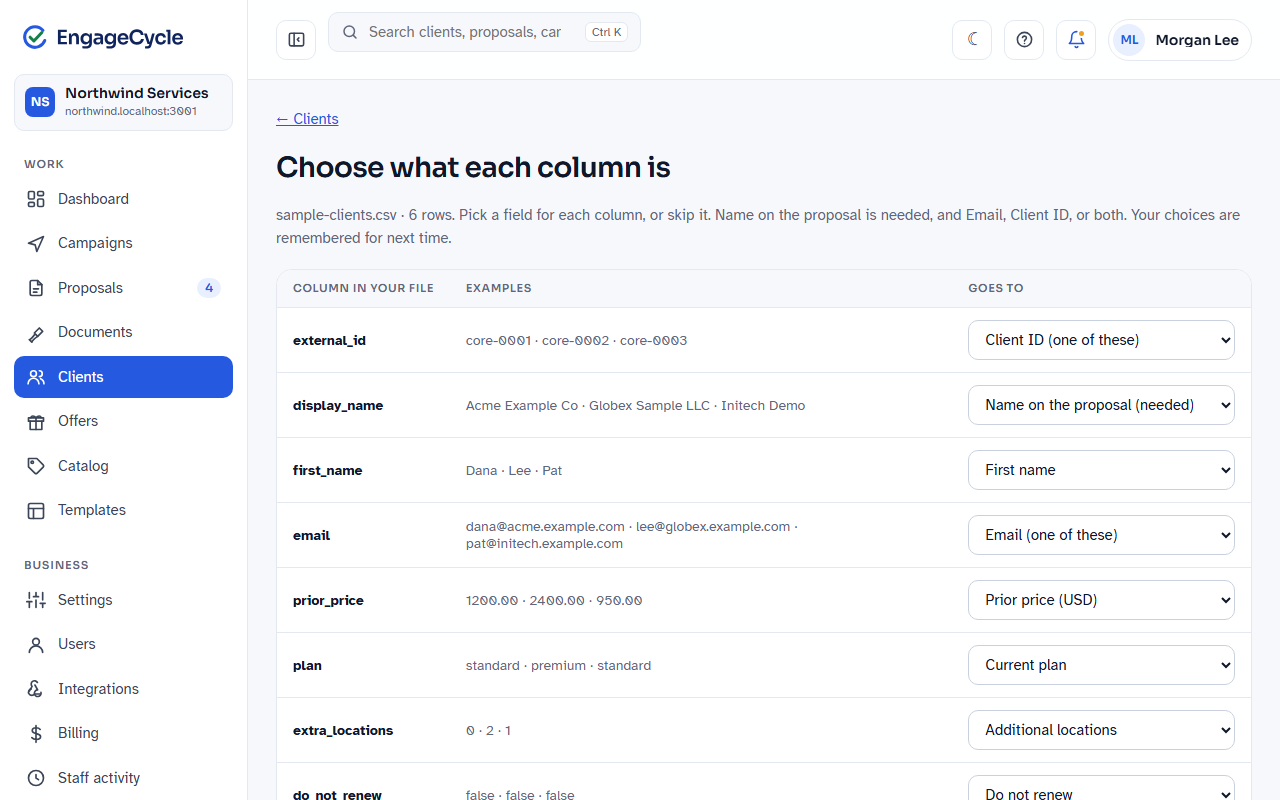
- Optional but easiest: click Download the template. It has a column for every field, already named so each one is matched for you. What goes in each column explains each one.
- Under CSV file, choose your file and click Next: choose columns. A file can have up to 5,000 rows.
- On Choose what each column is, pick a field under Goes to for each column in your file, or Skip this column. Name on the proposal is required, plus Email, Client ID, or both. Your choices are remembered for next time.
- Click Next: check the rows. The page shows how many rows are ready to import and how many have problems, the first few rows, and every row with a problem.
- Click Import N clients (for example Import 48 clients). To fix the mapping first, click Change the columns.
The Import finished page shows how many clients were new, updated, and skipped, with the reason for each skipped row.
Business columns. Four columns import business clients: Client type ("Individual" or "Business"), Business name, Contact name, and Title (the contact's). They're matched by headers like "Company", "Contact", or "Job title", and they come after Client ID in the template. A row with a Business name is a business. When a row has both Name on the proposal and Business name and no contact, the Name is used as the contact. A file without these columns, or a row where Client type and Business name are both blank, leaves a client's type and contact as they are. See Import business clients.
Representative columns. Five columns set up clients someone else signs for: Signs through, Representative name, Representative email, Representative phone, and Capacity. They come after the business columns. A row with a representative needs no email of the client's own. See Import clients someone signs for.
Find clients and work with several at once
Clients has two tabs, Active and Archived. Search by name, email, or client ID, or narrow the list with This season, Details (your client fields), and Source. A client who came from an offer shows that offer under Source.
Tick clients (or the box at the top for the whole page), and a bar appears with:
- Send a proposal: name a campaign and click Set up the campaign. It starts a campaign for just those clients. Nothing is sent until you go through it and schedule it. See Campaigns.
- Set a detail: puts the same value in one client field for everyone ticked. Leave the value empty to clear it.
- Export CSV and Download signed PDFs.
- Archive (on Archived, Restore).
Copy someone on a client's proposals
A client's page has a People section for anyone who should see their proposals, such as a spouse or an assistant.
- Open the client and, under People, click Add a person.
- Fill in Name, Email, Relationship, and, if you like, Phone (optional).
- Tick The client asked us to share this proposal with this person. It's required, and EngageCycle records who ticked it and when.
- Click Add person.
They're copied on the client's new proposals: they get a view-only link and the signed copy, and can never choose or sign. You can change who's copied on one proposal in the builder. If your plan has Multiple signers, you can choose Signer: signs it too under Role instead. See Signers and copied people.
Delete a client or remove their details
Owners see this at the bottom of a client's page.
- A client with nothing signed can be deleted with Delete client. That deletes the client and everything about them.
- A client with a signed proposal can't be deleted. Remove their details clears their details instead, and they show as "Removed client". Signed proposals still show their name and email as signed, and are kept until the date the page shows.
The page says what will happen, including any unsigned proposals or leads that go too, and asks you to confirm.
Good to know
- Importing again updates, it doesn't duplicate. Rows match an existing client by Client ID first, then email, so re-importing from your CRM updates people instead of duplicating them. A row matches by email only when exactly one client uses that email. When more than one does, and the row has no Client ID, it's skipped with "More than one client uses this email. Add an ID column to say which one." A new Client ID with an email another client uses becomes a new client.
- Rows with problems are skipped, not imported. Fix them in the file and import it again.
- Clients with no email are imported, but can't be emailed a link until you add one. The check page tells you how many.
- Rows to check lists rows that imported but look like they may hold an ID number. Never import government ID numbers or bank details. EngageCycle has no field for them.
- Archived clients are left out of lists and campaigns, but their history stays. Restore one from their page, or tick them on Archived and click Restore.
- People from your offers become clients when they sign. Until then they're on Leads, not here. Importing a row with the same email makes them a client right away and updates their record. Adding a client by hand with that email adds a separate client. When someone signs through an offer and more than one client already uses their email, they become a new client, and its Timeline says how many others share the email so you can tidy them up. See Offers.