

Creating and sending a proposal
This page walks through one proposal for one client, from starting it to the signed PDF: building what you're selling, previewing, sending, what your client sees, and how to change or withdraw a proposal after it's sent.
To send proposals to many clients at once, use Campaigns instead.
Before you start
You need three things:
- The client. Add them under Clients, or create them while starting the proposal (step 3 below). See Adding and importing clients.
- Your services in the catalog, with prices. You can also type items straight onto a proposal. See The catalog.
- A published template. The template is the look and wording (letter, terms, layout). It never sets prices. If you don't have one, New proposal tells you, and you can still build the proposal while you publish one under Templates.
To send an engagement letter or a consent form on its own, with no prices, use Documents instead. See Documents.
1. Start a proposal
From Proposals:
- Click New proposal.
- Under An existing client, search by name, email, or client ID, then click Choose next to the client.
- Or, under Or a new client, fill in Name on the proposal, First name, Email, Phone, and Prior price (leave it blank for a brand-new customer), then click Create client and continue.
From a client's page: open the client under Clients and click New proposal.
Both ways land on Proposal for [client]. If the client already has drafts, they're listed at the top so you can pick up where you left off.
2. Choose a starting point
Under Start from, pick one:
- Last season's proposal, rolled forward: the same items and prices as the last proposal this client signed. Shown only when they've signed one before.
- Start from a preset: one of your presets, by name. With none yet, it says "No presets yet. Build a proposal you send often, then choose Save as preset."
- Start from scratch: An empty proposal, one package with nothing in it yet.
Click Build the proposal. You can change anything on the next screen.
3. Build what you're selling
The builder saves as you go. The status at the top says All changes saved when everything is stored.
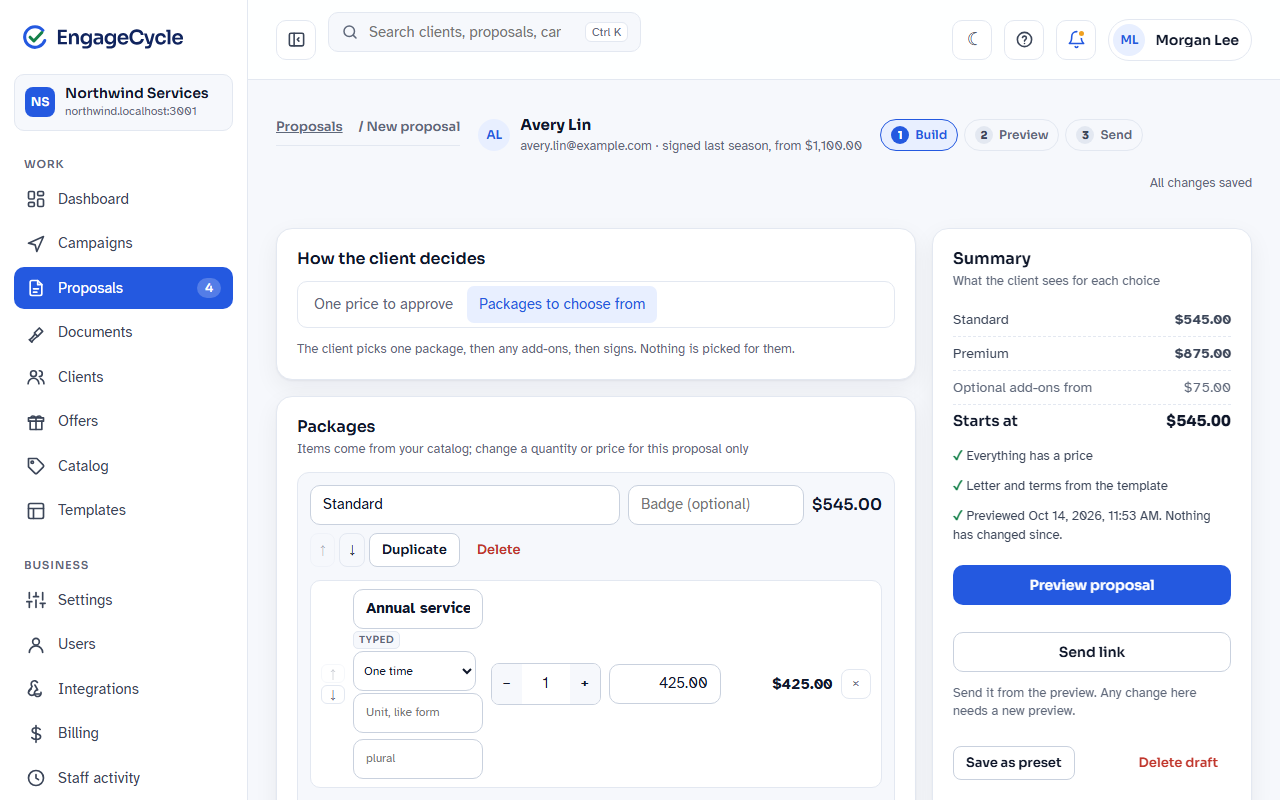
How the client decides
Choose one:
- One price to approve: the client approves one list and one total, adds any add-ons, and signs.
- Packages to choose from: the client picks one package, then any add-ons, then signs. Nothing is picked for them.
Switching from packages to one price keeps the first package's items and removes the others (the builder asks first).
Items
With one price, the card is called What's included. With packages, it's Packages, and each package has a name and an optional Badge (for example "Most popular").
- Click + From catalog to add a service from your catalog. Search, click each one you want, then click Done.
- Click + Typed item for a one-off item that isn't in your catalog. Type its name and price.
- A typed item has two boxes under its name: Description, the sentence the client reads under the item, and What's included, one bullet per line. Both are optional, and an item made through the API or an AI assistant shows what it came with, so you can reword it before you send. Each shows in the preview, and a change after previewing needs a new preview. A catalog item's words come from your catalog.
- Change an item's quantity with the minus and plus buttons, or type it.
- Change an item's price for this proposal only. If it differs from the catalog, the line shows the catalog price next to it.
- For a typed item, choose how it's billed: One time, Yearly, Every six months, Quarterly, Monthly, Weekly, or Billed as used (a rate per unit, with no quantity and in no total). Totals for different frequencies are shown side by side, never added together.
- Each item can have a unit (for example "form" or "hour") for this proposal only. An item billed as used needs one.
- Use the up and down arrows to set the order the client sees. Click × to remove an item.
With packages:
- + Add a package adds another one. Duplicate copies a package. Delete removes one. The up and down arrows beside a package set the order the packages show in.
- In + From catalog, you can pick Everything in [package] to include another package's items. For example, "Premium" can include everything in "Standard" plus two extras. Changes to Standard then show in Premium automatically.
Add-ons
Add-ons are optional extras the client can take with either way of deciding.
- Click + Add-on from catalog or + Typed add-on.
- Under How the client takes it, choose Client turns it on or Client sets how many. For "sets how many", fill in Fewest and Most.
- Set its price.
- With more than one package, you can tick Only with: to offer the add-on with certain packages only. With none ticked, it goes with any package.
Add-ons always start off (or at their fewest) for the client.
Discounts
A discount takes a fixed amount off whatever the client chooses, in one billing frequency. It shows on the proposal once, as its own line in green with a minus sign ("Loyalty discount −$50.00"), and the totals are net of it. With a price table on the page the line is in the table, and the total below shows only the totals; without one it shows above the total. The client can't remove it.
- Click + Add a discount.
- Pick one of your discounts from the catalog, or A one-off discount to type a name and an amount for this proposal only.
- Change the name, the amount, or how often it comes off (One time, Quarterly, and so on) as needed. The change is for this proposal only.
- × removes it.
A proposal can have up to 5 discounts. Anyone on your team can add one.
A total can't go below zero. Every package on its own has to cover the discounts in each billing frequency, since the client might choose the cheapest one. If it doesn't, the change isn't saved and the builder says why, for example "Loyalty discount (−$50.00) is more than Basic's one-time total ($40.00). A total can't go below zero." Lower the discount, raise the price, or remove the package. A quarterly discount needs something billed quarterly in every package.
The Summary shows each package's price and, under it, After discounts. A discount from last year's signed proposal (when you start from Last season's proposal) is tagged Carried a discount from last year.
Details
These print on the proposal:
- Link ends after: 14, 21, 30, 45, or 60 days. The actual date is fixed when you preview.
- Covers: the period the proposal is for, for example "2027". It fills [Period] in the template's wording.
- A note to the client (optional): a personal message, shown where the template places its Note to client block. If the template has none, the builder says "This template doesn't show a note. Add a Note block to the template to show it." You can still send.
Template
Pick a template from the cards, or click See all templates to see every published template shown with this proposal's own packages and prices. Templates that can't be used are greyed at the end with the reason (for example "Not published yet" or "Has unfinished placeholders"). The template changes the look and wording only, never what's sold.
Summary
The Summary on the right shows each package's total and Starts at (or the Total to approve), Optional add-ons from (the lowest add-on price), and a checklist:
- Everything has a price, or No price yet: with the items that still need one
- "Add a unit, for example form or hour" for an item billed as used that has no unit
- any package that's Empty
- Letter and terms from the template, or Choose a template
- Not previewed yet, or "Previewed (when). Nothing has changed since." when you come back from the preview. Any change after that reads "Changed since the preview. Preview it again."
Preview proposal stays greyed until every item has a price (and a unit where it needs one), no package is empty, and a template is chosen. The Send link button under it stays greyed until you've previewed, and then takes you back to the preview to send.
Signers and copied people
The Copied people card under the summary adds people who get a view-only link when the proposal is sent, for example a client's assistant. They can see the proposal and where it stands, but can never choose or sign. Click Add a person, fill in their details, tick The client asked us to share this proposal with this person, and click Add person. Changes there are for this proposal only.
If your business has Multiple signers, the card is called Signers and copied people, and you can give a person the Signer role instead. See "More than one signer" below, and Signers and copied people for the details.
4. Preview
Click Preview proposal. You see the full document exactly as the client will get it: letter, terms, packages, items, quantities, prices, and the expiry date.
Preview is required. You can't send without one, and you send from this page. This makes sure the client signs exactly the document you looked at.
The side panel shows the Template, Good until date, and the Total (or Starts at for packages). If anyone is copied, it lists them under Copied, with What a copied person sees.
- If you change anything after previewing, you go back to building and need a new preview.
- A preview is good for the day it was made. On a later day the page says "This preview is from an earlier day. Preview it again to fix a new expiry date." Click Preview again.
- Click Back to edit to make changes.
5. Send it
On the preview page, choose how the client gets it:
- Send link to [first name]: emails the client their link. Not available if the client has no email address.
- Create link: makes the link without emailing it, so you can copy it into a text message or any other message. The next page has Copy link and Email it to [client] if you decide to email it after all. If anyone is copied, leave Email copied people (N) their view-only link ticked to email them, or untick it.
- Sign in person: for a client who is with you. See "Sign in person" below.
A confirmation asks first. It shows the credits this uses and what you'll have left. Click Publish and use 1 credit to go ahead.
If Email the link when I send is turned off in Settings > Email, the preview offers Create link as the main button and no Send link button (unless the proposal has more than one signer).
Credits
- Sending, creating a link, or signing in person uses 1 credit, the first time only.
- Sending a new link, copying the link, or emailing it later doesn't use another credit.
- Sending a revised version is free, unless you withdrew the one it replaces before the client opened it.
- Withdrawing a proposal before the client opens it gives the credit back. Sending a revised version of it then uses 1 credit, the same as any send, and asks you to confirm first.
- If you're out, the confirmation says so ("You have 0 left, so this can't go through.") and how to get more. Owners get a link, such as Buy a pack; staff are told to ask an owner. Your credits show in the chip in the top bar.
See What's a credit? for everything that does and doesn't use one.
Sign in person
- Click Sign in person (on the preview page, or on the proposal page of a proposal that's sent but not signed yet).
- Tick the box confirming that the person signing is the client (or their authorized signer) and that you've checked their identity.
- Click Start in-person signing.
- Either click Open signing page and hand over your device, or have the client scan the code with their phone.
This in-person link works once and ends after 10 minutes. The certificate records you as the staff member who checked their identity.
More than one signer
Only when your business has Multiple signers. People with the Signer role (a client's spouse or business partner, for example) sign the proposal too, each with their own link. Add them on the client's page or in the builder's Signers and copied people card. In the builder's Signers card, choose Who must sign (All signers or Any one signer) and, for All signers, Order (All signers) (Any order or In order), then click Save signing. With In order, use Up and Down to set the order.
- Send link emails each signer whose turn it is their own link. In order, the next signer is emailed when the one before signs.
- The first signer to sign chooses the package and add-ons. Everyone after them sees that choice filled in and signs it.
- Create link makes every signer's link and emails no one. Copy each one from the Signers table on the proposal page.
- Sign in person: choose Who signs now, confirm their identity, and hand over the device. When they've signed, the page says "Hand the device to [name]"; click Confirm [name] and continue, confirm that signer's identity, and their turn opens.
- The proposal page's Signers table shows where each signer stands, with Copy link and Send link again for each one whose link is open. While it's open, the status reads, for example, "Signed by 1 of 2".
- Under All signers, a decline by any signer closes the proposal. Under Any one signer, the first signature completes it, and it's declined only when every signer has declined.
For adding signers, the client's default for who must sign, and copied people, see Signers and copied people.
What your client sees
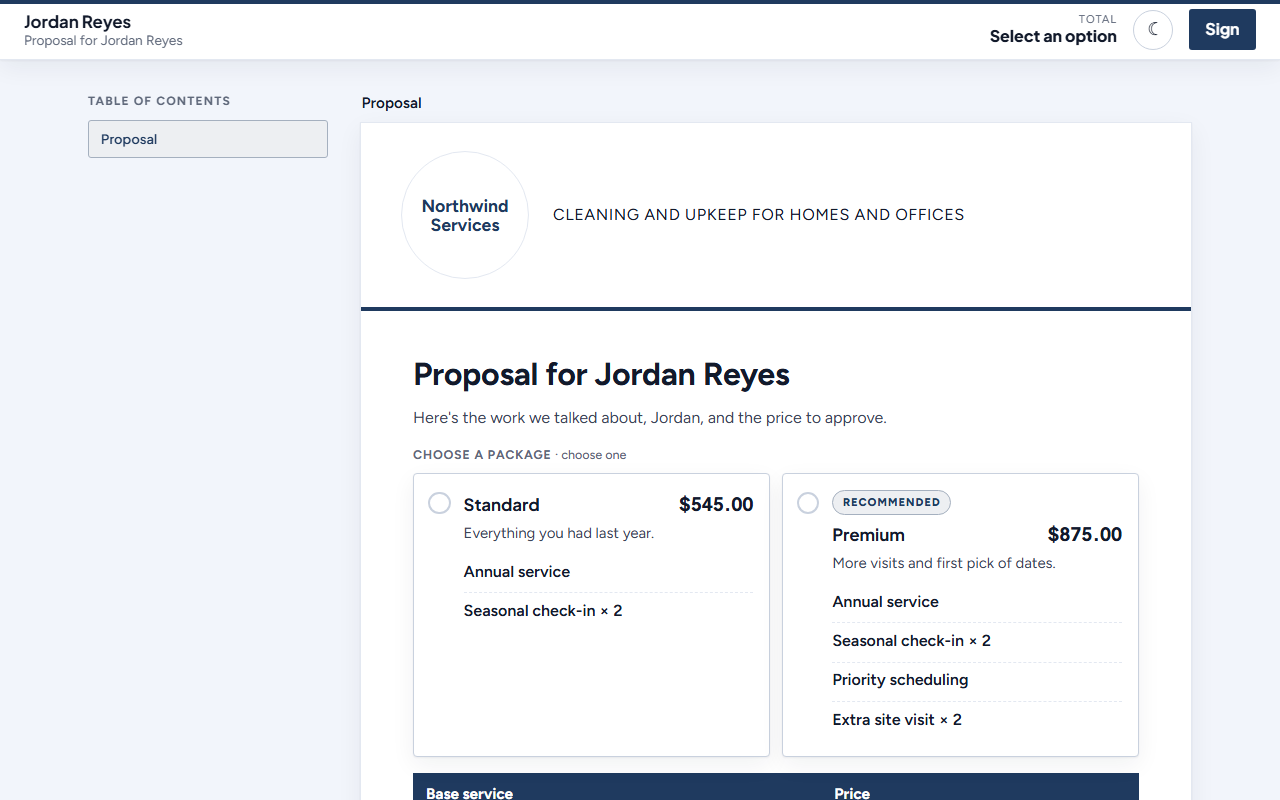
The client opens a page titled "Your proposal from [your business]". It has:
- a top bar with their name, the running Total, and a Sign button that jumps to the signature
- a table of contents and the template's pages (letter, services, terms)
- your packages to choose from (none chosen for them) or the one list to approve, and any add-ons
- Initial boxes beside any section your template asks them to initial
- a consent checkbox
- Type your full name to sign, then the sign button (Sign and accept unless your template words it differently)
The total updates as they choose. Any discounts show as their own green lines with a minus sign, and the totals are what they'll pay after them. After signing they see "You're all set" and a summary of what they signed. While the PDF is being made, the page says Preparing your signed copy with a progress bar that shows where it is (Signed, In line, Making your copy, Ready) and updates on its own; then Download your signed copy appears.
If they're not going ahead, Not continuing this time? lets them pick a Reason, add a note, and click Decline this proposal.
With more than one signer, a signer who signs after the first sees the choice already made, filled in, and signs that same choice.
Statuses
The Proposals list shows each proposal's Status:
| Status | Meaning |
|---|---|
| Not sent yet | A draft you're still building. |
| Sent | Sent, not opened yet. |
| Opened | The client opened the link. |
| Signed | Signed. The PDF and certificate are ready (or being prepared). |
| Declined | The client declined, or you recorded a decline. |
| Expired | The link's end date passed without a signature. |
| Withdrawn | You withdrew it. Its link can't be signed. |
| Replaced | You sent a revised version that replaced it. |
Filter the list with Status (choose Waiting on client for everything sent or opened but not signed), Booked (whether the client booked a call from the proposal), and Campaign. Search by name or email. The tiles at the top show Waiting on clients, Expiring in 7 days, and Signed this season.
Drafts appear in a Drafts card at the top of Proposals and on the client's page, with Continue and Delete.
Reminders and expiry
Each proposal is open until its Good until date (the end of that day in your time zone). After that it's Expired and can't be signed.
If your business sends email from EngageCycle, you control these in Settings > Email:
- Reminder, days before the link expires: one reminder email before the link ends. 0 turns reminders off. If you give the client more time, they get one more reminder before the new date.
- Tell clients when their link expires
- Email clients their signed copy
If a client whose proposal has expired asks for a new link (from the expired page or your business page), they aren't sent one, since the proposal can't be signed anymore. The page tells them your business has been told and will be in touch, and your team gets a notice: "[Client] asked for a new link to an expired proposal." Open the proposal and click Extend and reopen to give them more time on the same link (see below), or start a new proposal if the price should change. You choose how you get these notices in My notices, like any other.
Give a client more time
If a client needs longer to decide, extend the deadline. It's the same proposal and the same link: nothing about what they're signing changes.
- Open the proposal and click Extend deadline (under The client's link). For a proposal that has expired in the last 30 days, the button reads Extend and reopen.
- Pick the New deadline, or click +7 days, +14 days, or +30 days. These count from the current deadline, or from today if it has already passed.
- Add a Reason (optional), for example "Waiting on documents". Only your team sees it.
- Leave Email the client ticked to email them the new date, or untick it to tell them yourself.
- Click Extend deadline (or Extend and reopen).
The page says "Deadline extended to [date]." Link ends shows the new date with "(extended from [the old date])", the What happened list shows the extension, and Staff activity records who did it.
What your client sees:
- Their link keeps working. The email has a second link with the new date. Both links work.
- The document doesn't change. It still shows the "Respond by" date it was sent with, and so does the signed PDF. A note above it says "[Your business] extended your deadline to [date]."
- An expired proposal opens again on the same link, as it was (Sent, or Opened if they had opened it).
- If you have a reminder set up, they get one more reminder before the new date.
Good to know:
- When you can: any time while the proposal is open, or within 30 days after it expired. After that, start a new proposal.
- The new date is the end of that day in your time zone. It has to be later than the current deadline and within 180 days from today.
- You can extend more than once. Each extension is listed, and the signed PDF's certificate lists each one in its timeline.
- No credit is used.
- More than one signer: everyone gets the new date, and each signer whose turn it is gets the email.
- Walkthroughs: a document in a walkthrough is extended from the walkthrough's page. See Walkthroughs.
- Agreements and consent forms sent on their own have the same Extend deadline button.
Working with a sent proposal
Open it from Proposals. Everything you can do is under Actions, in groups: The client's link, See or sign it, and Change it (which holds Revise and Withdraw). With more than one signer or copied people, the page also has a Signers table and a Copied people table.
The client's link
- Copy link: copies the link the client already has. It doesn't change or end it.
- Make a copyable link: shown for proposals sent before links could be copied. It makes a new link you can copy any time. The client's existing link keeps working.
- Email the link: emails the client their current link.
- Send a new link: makes a fresh link and sends it. Earlier links stop working.
- Extend deadline (or Extend and reopen): gives the client more time on the same link. See Give a client more time.
- Reissue link: for an expired or withdrawn proposal. It reopens the same proposal with the same content and a new link, and earlier links stop working. You confirm first. An expired one gets a new end date: the deadline is extended, and the document keeps the date it was sent with. This works only within 30 days after it expired; after that, start a new proposal. A proposal withdrawn before the client opened it gave its credit back, so it can't be reissued: revise it or start a new one to send it again.
See or sign it
- Preview as client: the document exactly as sent.
- Sign in person: see above.
Revise
Use Revise to change a proposal after sending it, for example to fix a price or add a service.
- Click Revise. The builder opens with a copy of the proposal and a banner saying which version you're replacing.
- Make your changes, then preview.
- Click Send version 2 to [first name] (or Create version 2 link, or Sign in person).
The new version replaces the old one. The client gets an ordinary proposal email and isn't told what changed. If they open the old link, it says the proposal has been withdrawn and offers See the newest version (when the new version went to the same email address).
While a revision is unsent, the button reads Continue version 2. Deleting that draft leaves the sent version as it was. The proposal page lists every version under Versions.
You can revise a proposal that's sent, opened, declined, or withdrawn. You can't revise one that's signed or expired, or one made before the proposal builder (the page explains why).
Withdraw
Use Withdraw to cancel an open proposal.
- Click Withdraw.
- Leave Email the client ticked to tell them it was withdrawn (the email has no link). Untick it if, for example, it went to the wrong person. The page says exactly what the client will get.
- Optionally add a Note for your team.
- Click Withdraw proposal.
The client's link then says the proposal has been withdrawn, and it can't be signed.
If the client hadn't opened it yet, its credit comes back. Sending a revised version of it later uses a credit, the same as any send.
Record a decline
If a client says no by phone or email, use Record an outcome: choose a Reason, add a Note, and click Record decline.
The signed PDF and certificate
When the client signs, EngageCycle makes a PDF of the signed proposal with a Signature certificate page at the end. The certificate records who signed and how, when it was sent, first viewed, and signed, the signer's IP address and browser, the consent they agreed to, what was signed and the total, and fingerprints that prove the document hasn't changed since.
To get it later:
- Open Proposals and filter Status to Signed (or open the client's page).
- Open the proposal and click Download signed PDF under What was signed. If it says "Signed PDF is being prepared.", check back in a moment.
The client can download their copy from the signing page, and gets it by email if Email clients their signed copy is on.
Passed to your software shows whether your automation picked up the signed proposal. Click Mark as done once it's in your other system.
Save as preset
If you'll build similar proposals again, click Save as preset in the builder and give it a name. It appears under Start from a preset for every client, and under Catalog > Presets, where you can edit or archive it. See Presets.
Good to know
- A sent proposal never changes. To change one, revise it. The signed document is exactly what the client saw.
- Nothing is preselected for your client. They choose their own package and add-ons.
- Catalog price changes don't reach proposals already built. Each proposal keeps its own copy of its items and prices.
- The expiry date is set at preview, not when you send.
- An agreement or consent form sent on its own is sent from Documents, not the proposal builder. It's good for 21 days unless you change Good for (days) (7 to 90) on its preview and click Preview with these days. See Documents.
- Delete draft in the builder removes a draft that was never sent.
- Every action is recorded under Staff activity on the proposal page.