

Documents: agreements and consents
This page covers sending an agreement (for example an engagement letter) or a consent form on its own, to one client or to many, and what happens after: signing, statuses, reminders, the signed PDF, and credits.
What a document is
A document is an agreement or a consent your client signs on its own, with nothing to price or choose. A proposal is different: it has a build (packages, items, add-ons, and prices) that the client picks from before signing.
| Proposal | Agreement | Consent | |
|---|---|---|---|
| What it's for | Services and prices the client chooses from | Your own terms, for example an engagement letter | Permission you need from the client, in your own words |
| Prices | Yes | No | No |
| Client can say no | Not continuing this time? | Only if your template has a Decline option | Always, with No thanks |
| Where you find it | Proposals | Documents | Documents |
You write all the wording of an agreement or a consent. EngageCycle never writes, reviews, or changes it.
Before you start
- Agreement and Consent need to be on your plan. They're on for every plan unless EngageCycle has turned them off for your business. While at least one is on, Documents shows in the sidebar, under Proposals. See "Check that documents are on" below.
- A published agreement or consent template. See "Make an agreement or consent template" below.
- The client. Add them under Clients first. See Adding and importing clients. A client with no email address can still sign in person.
- Who can do what: anyone on your team can send a document. Only an owner can publish a template or change your email wording.
Check that documents are on
You can't switch Agreement or Consent on or off yourself. To see whether they're on:
- Look for Documents in the sidebar. If it's there, at least one kind is on.
- To see which, an owner clicks Billing and looks under What your plan includes for Agreement templates and Consent templates. Each one shows only while it's on.
- If one you need is missing, contact EngageCycle.
If both are turned off later, the Documents page still lists everything you sent, with the note "Agreements and consents aren't on your plan, so you can't send a new one. Documents you already sent keep working." Clients can still sign documents that are already out.
Make an agreement or consent template
An agreement or a consent is a template, like a proposal, so you make it under Templates. See Templates for the editor itself.
Open Templates and click New template.
Under What are you making?, choose Agreement or Consent.
Type the Title clients see.
Under Start from, pick one:
- A copy of one of yours: lists only your templates of the same kind.
- Blank: a heading, a place for your own wording, the e-sign consent, and a signature. A blank consent also gets a Decline option.
A starter look isn't offered for documents. Starters are proposals.
Click Create and edit.
Replace the placeholder text with your own wording. A template with unfinished placeholders can't be sent.
An owner clicks Publish.
What each kind can hold:
- Agreement: any block except the pricing blocks (Services, Add-ons, Total, Fee schedule, Packages, Price comparison) and the offer blocks. To publish, it needs a Signature and an E-sign consent. It can show your Consent documents block, so the client agrees to those too.
- Consent: Header (logo and business name only), Heading, Text, Divider, Spacer, E-sign consent, Signature, and Decline option. To publish, it needs all three of Signature, E-sign consent, and Decline option, because a client can always say no to a consent. The signature shows the date signed.
The Templates list has a Kind column and filter, so you can find your agreements and consents quickly.
Send a document to one client
- Click Documents in the sidebar, then Send a document. Or open the client under Clients and click Send a document (then skip to step 3).
- Under Who it's for, search by name, email, or client ID, click Search, then click Choose next to the client.
- Under What to send [client], pick one of your published agreements or consents, and click Continue.
- The draft page shows What you're sending. If you have more than one, you can pick another and click Use this one.
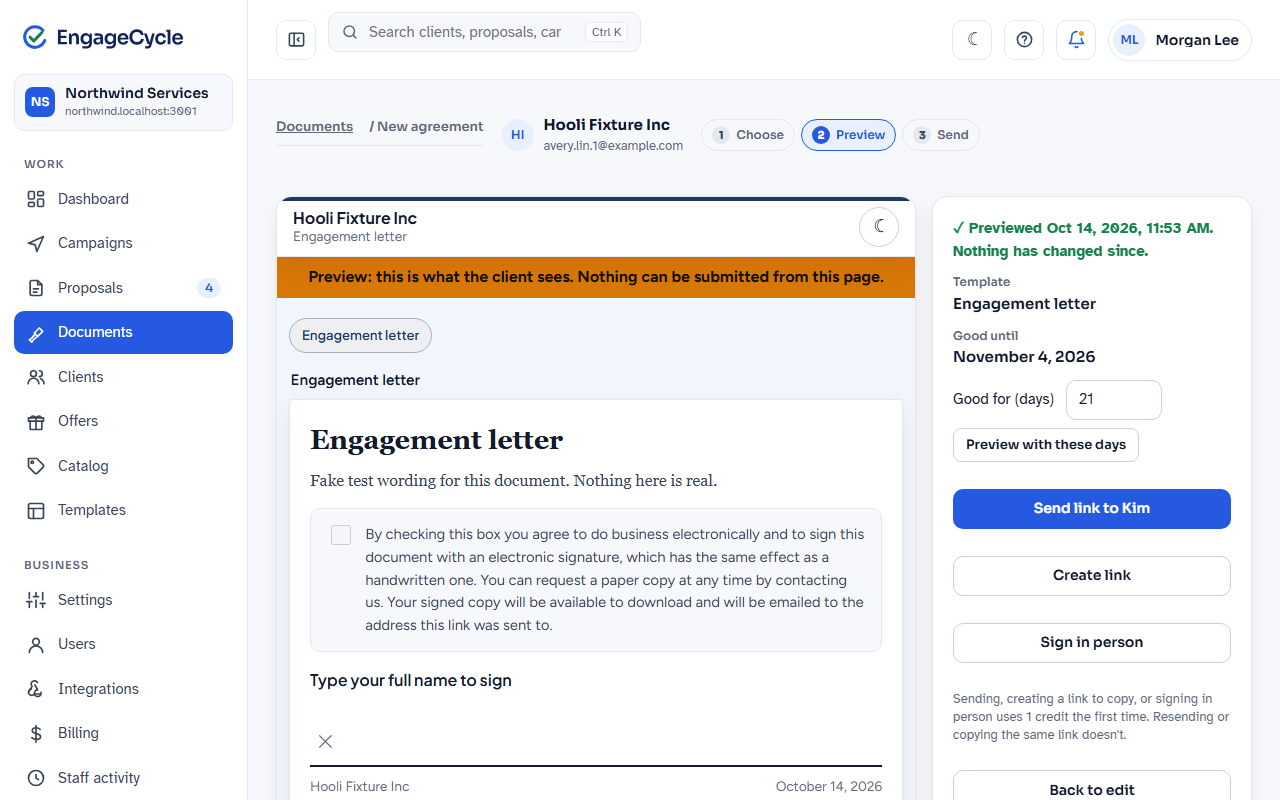
- Set Good for (days): from 7 to 90. It starts at 21.
- Click Preview agreement (or Preview consent form).
- Check the document exactly as the client will get it. The side panel shows the Template and the Good until date. To change how long it's good for, type a new number in Good for (days) and click Preview with these days.
- Choose how the client gets it:
- Send link to [first name]: emails the client their link. Not available if the client has no email address.
- Create link: makes the link without emailing it, so you can copy it into a text message or any other message.
- Sign in person: for a client who is with you. It works as it does for proposals. See Sign in person.
- The confirmation, Publish this agreement? (or consent form), shows the credits this uses and what's left. Click Publish and use 1 credit.
If you change your mind before sending, click Delete draft on the draft page. Unsent drafts are listed in a Drafts card at the top of Documents and on the client's page.
Send a document to many clients
A document campaign sends one agreement or consent to many clients in batches. There's no What step and no pricing rules: each client gets the document exactly as you wrote it.
On Documents, click Send to many clients. (Or from Campaigns, click New campaign, then Start a document campaign.)
Type a Campaign name, choose What to send, and click Make the campaign.
Under Settings, check:
- The agreement (or The consent form): you can switch to another published one of the same kind.
- Days to answer: how long each client has, counted from when their batch goes out.
- Batch size, Batches go out (Every hour, Every day, or Every week), and First batch (leave it empty to send the first batch as soon as it's scheduled).
- Leave out clients with an open agreement from this template (or consent form).
- Leave out clients with no email (otherwise they wait for one).
Click Save settings.
Under Review, look through the clients. Each row shows the document they'll get and when they last signed one from this template (Last signed from this template). Click Leave out or Add back for anyone. Then click I've looked through everyone.
Click Preview on a client's row to see their document exactly as they'll get it. If it's right, click This looks right.
Under Before scheduling, once it says Reviewed, Previewed, and "Ready to schedule.", click Schedule.
The confirmation, Schedule this campaign?, says how many go out and how many credits that uses. Click Schedule.
The campaign starts with everyone, minus the clients your fields leave out by default (listed under Settings as "Also left out, from your fields"). If you change the settings after reviewing or previewing, mark both again before you schedule.
Once it's scheduled, follow it on the campaign's page like any other campaign. See Follow progress.
What your client sees
The client opens a page titled "Your agreement from [your business]" (or "Your consent form from ..."). It has your document, page by page, with no prices and no running total. The top bar's Sign button jumps to the name box.
- Agreement: your wording, any Initial boxes your template asks for, your consent documents if the template shows them, the e-sign consent checkbox, and Type your full name to sign. If your template has a Decline option, the client can choose a Reason and click Decline this agreement.
- Consent: your wording, the e-sign consent checkbox, and the signature, with the date beside it. No thanks is always there: the client can add an optional note and click No thanks. The page tells them declining doesn't change anything else they've signed with you.
Nothing is ticked or filled in for the client. After signing they see "You're all set", "What was signed: [title], the agreement from [your business].", and Download your signed copy.
Emails about documents (the link, reminders, the signed copy, and the rest) have their own wording, separate from your proposal emails. Edit them in Settings > Email under Agreements and consent forms sent on their own. See What clients receive.
More than one signer
Only when Multiple signers is on for your business. A document is signed by the client and their people with the Signer role, each with their own link. Copied people aren't added to documents.
- Agreement: the Signers card on the draft lets you choose Who must sign and the order, as for a proposal.
- Consent: each person answers for themselves, and one person's answer never decides another's. Everyone gets their link when it's sent. The consent closes when everyone has answered, or at its end date. It's Signed if anyone signed, Declined if everyone declined, and Expired if no one answered.
See Signers and copied people for the details.
Statuses
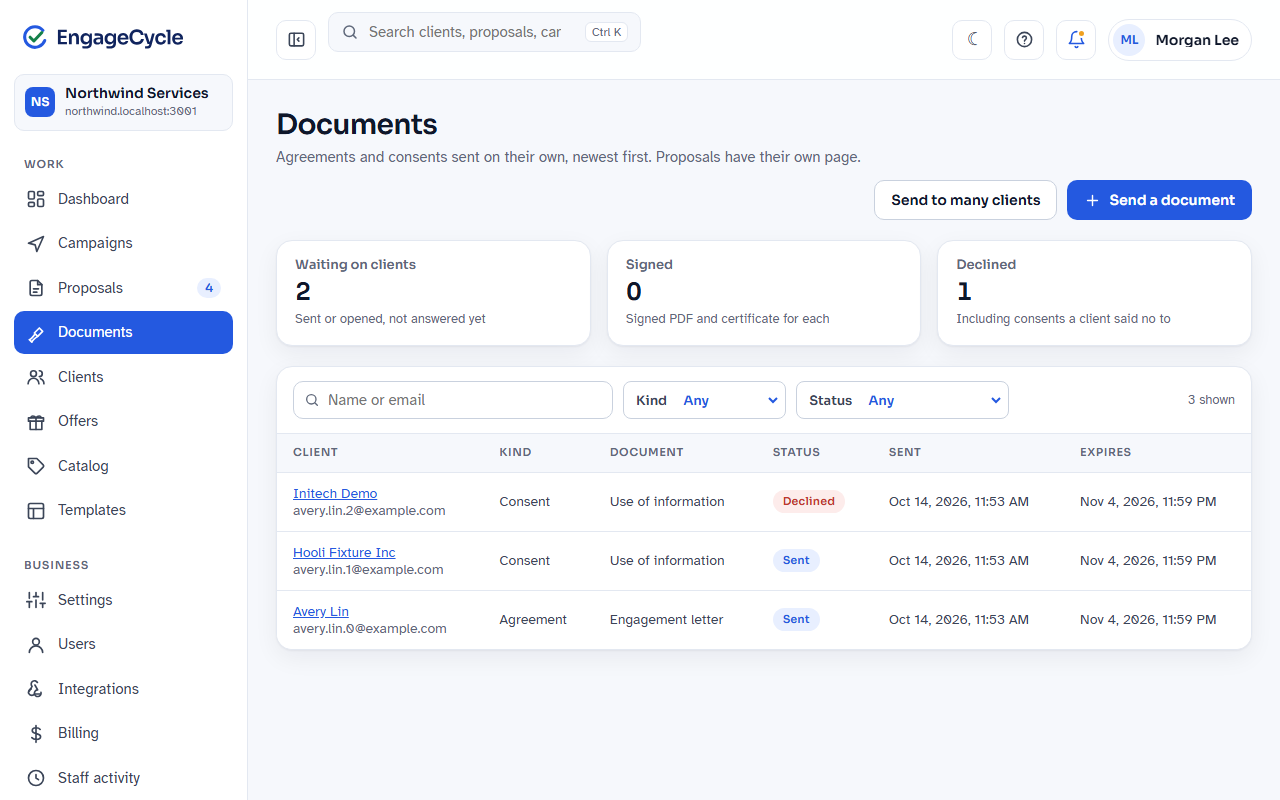
The Documents list shows each document's Kind, Document (the template's title), Status, Sent, and Expires. Click the client's name to open it.
| Status | Meaning |
|---|---|
| Sent | Sent, not opened yet. |
| Opened | The client opened the link. |
| Signed | Signed. The PDF and certificate are ready (or being prepared). |
| Declined | The client declined (for a consent, No thanks), or you recorded a decline. |
| Expired | The end date passed without an answer. |
| Withdrawn | You withdrew it. Its link can't be signed. |
| Replaced | You sent a revised version that replaced it. |
Filter the list by Kind (Agreement or Consent) and Status (choose Waiting on client for everything sent or opened but not answered). Search by name or email. The tiles at the top show Waiting on clients, Signed, and Declined.
Reminders and expiry
Each document is open until its Good until date (the end of that day in your time zone). After that it's Expired and can't be signed.
- A document sent on its own is good for the Good for (days) you chose at preview: 21 unless you changed it.
- A document campaign uses its Days to answer, counted from when each client's batch goes out.
Reminders and expiry emails follow your settings in Settings > Email, the same ones proposals use: Reminder, days before the link expires, Tell clients when their link expires, and Email clients their signed copy. See Reminders and expiry.
If a client asks for a new link to an expired document (from its expired page, or the link in the email saying it expired), they aren't sent one, since it can't be signed anymore. The page tells them your business has been told and will be in touch, and your team gets a notice: "[Client] asked for a new link to an expired agreement" (or consent form). Open the document and click Extend and reopen to give them more time on the same link (see Give a client more time). This works within 30 days after it expired.
Work with a sent document
Open it from Documents (or from the client's page). It opens on the same kind of page as a proposal, showing its Kind and template instead of prices. Everything you can do is under Actions:
- Copy link, Email the link, Send a new link, Extend deadline, and Reissue link: as for proposals.
- Preview as client and Sign in person.
- Revise: makes version 2 from the newest published version of the same template. Preview it, then send it to replace the one you sent. Sending a revision doesn't use a credit, unless you withdrew the one it replaces before the client opened it (that credit came back, so the revision uses one). See Revise.
- Withdraw: cancels an open document. Its link then says it has been withdrawn. See Withdraw.
- Record an outcome: for a client who says no by phone or email. For a consent, choose No thanks or one of your template's reasons, and click Record decline.
The signed PDF
When a document is signed, EngageCycle makes a PDF of it with a certificate at the end, titled Signed agreement or Signed consent. The certificate records who signed and how, when it was sent, first viewed, and signed, the signer's IP address and browser, and fingerprints that prove the document hasn't changed since.
To get it later:
- Open Documents and filter Status to Signed (or open the client's page).
- Open the document and click Download signed PDF under Signed. If it says "Signed PDF is being prepared.", check back in a moment.
The client can download their copy from the signing page, and gets it by email if Email clients their signed copy is on.
A signed consent is also kept on the client's page, under Consents on file.
Credits
A document uses 1 credit the first time it reaches a client, whatever its kind and however many signers it has. It's the same rule as proposals:
- Sending the link, creating a link to copy, or signing in person uses 1 credit, the first time only.
- Sending a new link, copying it, or emailing it again doesn't use another.
- A revised version that replaces one you sent is free.
- Withdrawing a document before the client opens it gives the credit back.
- A document campaign uses 1 credit for each document, as each one goes out. Each batch is checked for credits before any of it sends.
See What's a credit?.
Good to know
- A sent document never changes. To change one, revise it. The client signs exactly what you previewed.
- Your own wording, always. EngageCycle doesn't write or check what your agreements and consents say.
- Declining a consent doesn't undo anything else. The client's other signed agreements and proposals stay as they are, and you can send the consent again later as a new document.
- Documents and proposals are counted apart. The dashboard, Proposals, and your proposal campaigns never count a document. Documents has its own counts.
- Documents have no book-a-call link and no handoff. Passed to your software is only on proposals.
- Your automation gets its own events. A signed document sends
document.signed, neverproposal.signed, and only to webhooks that tick the document events. See Integrations. - Staff notices for signed and declined documents are in their own Documents group in My notices. See Notices.
- Every action is recorded under Staff activity on the document's page.