

The catalog
The catalog is the list of services you sell, with their names, descriptions, and prices. This page covers adding and editing services, changing prices, archiving, and importing or exporting the catalog. Presets, the catalog's second tab, have their own page. Discounts, the third tab, are below.
How the catalog and proposals fit together
When you add a service to a proposal, the proposal copies the service's name, description, "What's included" lines, unit, price, and billing at that moment. After that, the proposal keeps its own copy:
- Changing a price in the catalog changes new proposals only. Drafts already started and proposals already sent keep the price they copied.
- Changing a price on one proposal changes that proposal only. The catalog stays the same.
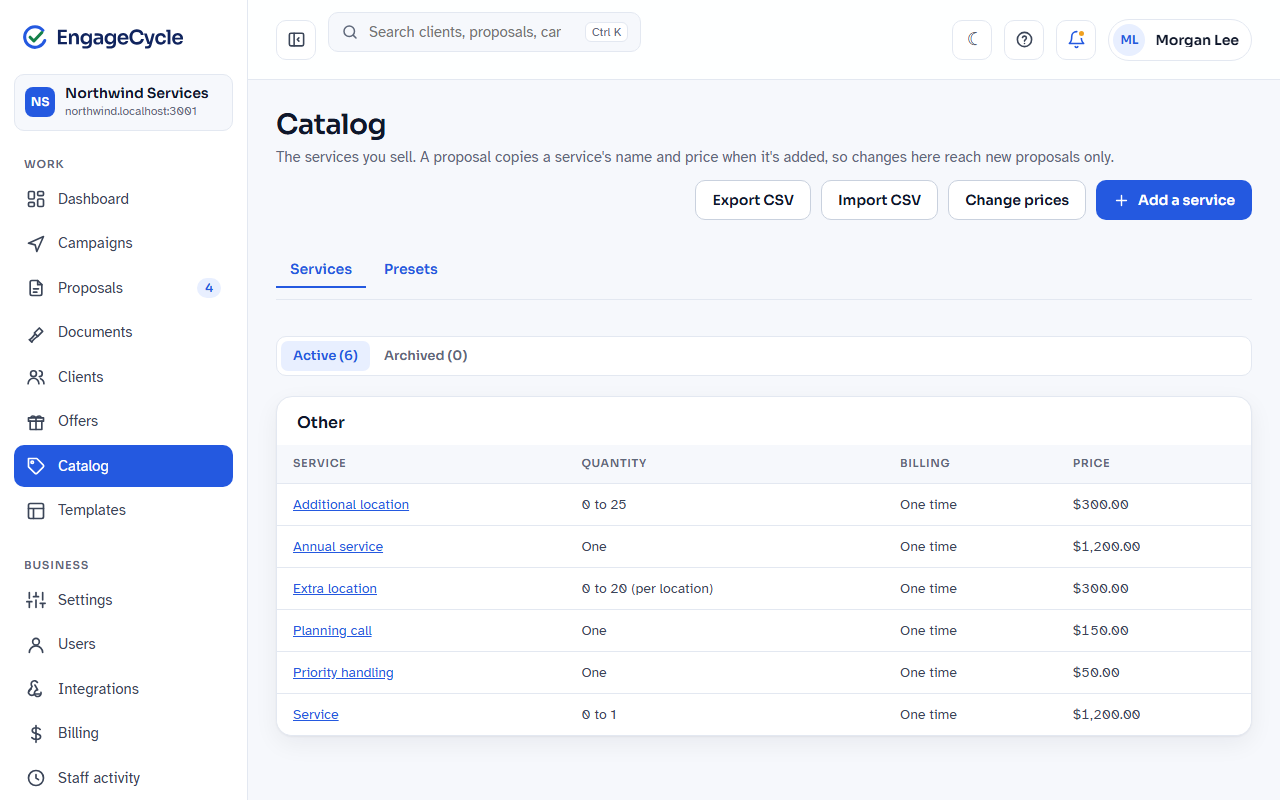
Open Catalog in the menu to see your services (the Services tab), grouped by category. Each row shows the Service, Quantity, Billing, and Price.
Who can do what
Everyone on your team can view the catalog, add a service, edit a service's wording, add suggested services, and export the catalog.
Only an owner can:
- set or change a price (on a service, or with Change prices)
- archive or restore a service
- import a CSV
Staff see a service's price but not the field to change it, with the note "Only an owner can set or change prices."
Add a service
Open Catalog and click Add a service.
Under The service, fill in:
- Name: what clients see on the proposal. Each active service needs its own name.
- Category (optional): groups the catalog, for example "Ongoing services". The help text lists the categories you already use.
- Description (optional): a short line shown under the name.
- What's included (optional): one line each. These print under the service on the proposal.
Under Price, fill in:
- Price each: in your business's currency. Leave it empty for "No price yet". Enter 0 for a service that's included at no charge.
- Billing: One time, Yearly, Every six months, Quarterly, Monthly, or Weekly. Each billing frequency shows its own total on the proposal, apart from the one-time total. They are never added together.
Under Quantity, choose How many:
- One per proposal for most services.
- The proposal sets how many for services you count, such as each extra location or each additional room. Then fill in Unit (for counted services and rates) (for example "room"), Fewest (for counted services), and Most (for counted services).
- Billed as used (a rate per unit) for a price per unit that you bill for the actual number later, such as an hourly rate. It needs a Unit (for counted services and rates), has no quantity on the proposal, and is never in a total. The proposal shows it as, for example, "$15 per hour".
Plural (optional) is the unit for more than one. Left blank, it adds "s". Change it when that reads wrong.
Click Add the service.
For example, a cleaning company might add "Deep clean" as a one-time service, "Weekly cleaning" as a monthly service, and "Extra room" as a counted service with the unit "room".
No price yet vs. Included
These are different on purpose:
- No price yet means nobody has set a price. The service shows a "No price yet" tag in the catalog, and a proposal that contains it can't be previewed or sent until you give it a price (on the proposal or in the catalog).
- Included means a price of 0. It prints as "Included" on the proposal and can be sent.
When any active service has no price, the catalog shows a note at the top, for example "2 services have no price yet."
Add suggested services
The packs your business uses can suggest common services. When there are suggestions you haven't added, a Suggested services box appears at the top of the catalog (open by default when your catalog is empty).
- Open Suggested services.
- Tick each service you want.
- Click Add selected.
Suggested services arrive without prices, so each one says "No price yet" until an owner sets it.
Edit a service
- In Catalog, click the service's name.
- Change what you need and click Save.
The page also has a Where it's used card. It lists the proposals (drafts and sent ones) and presets that include this service. They keep their own copy of its name and price, so editing here doesn't change them.
Change several prices at once
Owners can raise or lower many prices in one step, for example a yearly increase.
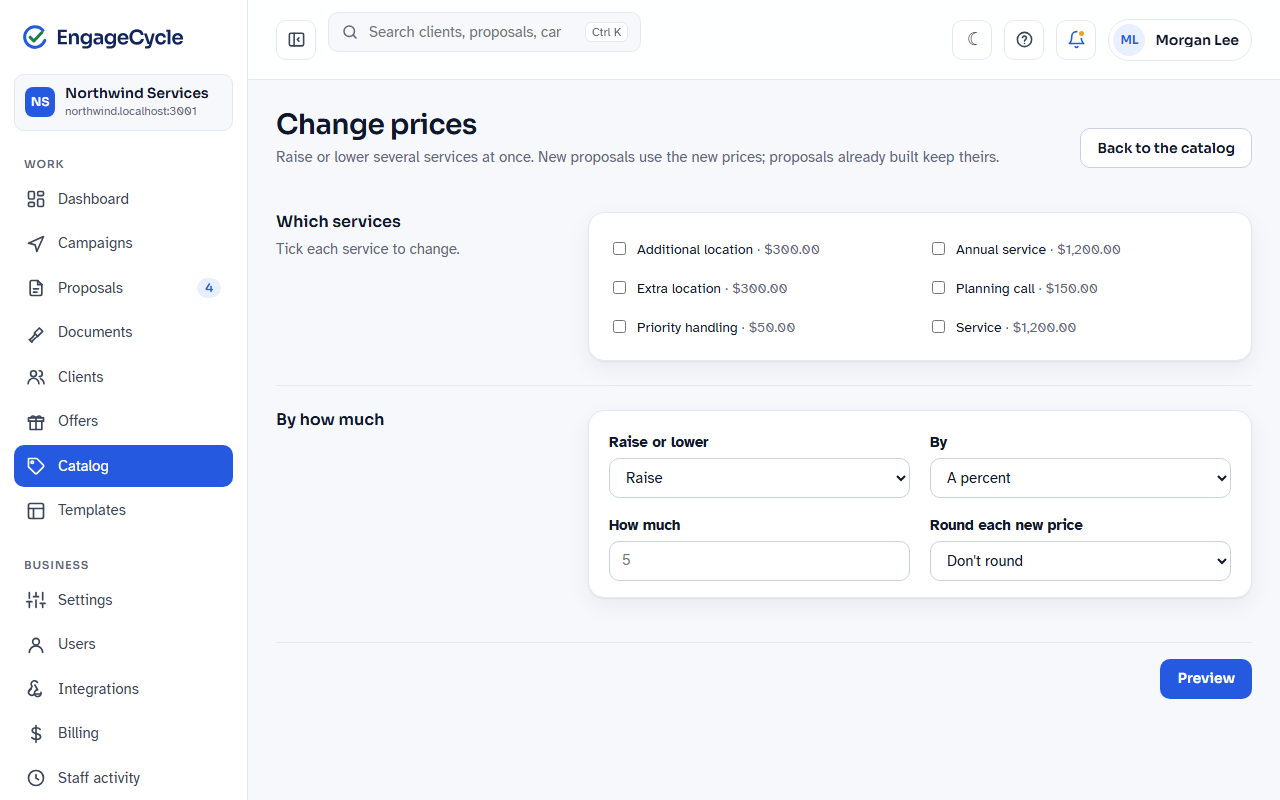
- In Catalog, click Change prices.
- Under Which services, tick each service to change. Services with no price yet can't be ticked.
- Under By how much, choose:
- Raise or lower: Raise or Lower.
- By: A percent or An amount (in your currency).
- How much: the number, for example 5.
- Round each new price: Don't round, Nearest 1, Nearest 5, Nearest 10, or Nearest 25.
- Click Preview. A Before and after table shows each service's Now, New, and Change. Nothing has changed yet.
- If it looks right, click Apply these prices.
New proposals use the new prices. Proposals already built keep theirs.
Archive or restore a service
You can't delete a service, so proposals that used it never lose it. To stop offering one:
- Open the service.
- Under Stop offering it, click Archive.
Archived services don't appear when you build new proposals. Proposals already built with them keep them. To see archived services, click Archived above the list. To bring one back, open it and click Restore under Bring it back.
Export the catalog
Click Export CSV on the catalog page. You get a spreadsheet-friendly file of your services, which is also the format for importing.
Import services from a CSV
Owners can add or update many services from a file, up to 1,000 at a time.
- In Catalog, click Import CSV.
- If you want a starting file, click Download the current catalog. Edit it in a spreadsheet and save it as CSV.
- Choose the file under CSV file and click Check the file. Nothing is saved yet.
- Read the result:
- Ready to import shows how many services will be added, updated, and left unchanged.
- Fix these rows first lists each row with a problem. Nothing was saved. Fix the file and check it again.
- Click Import.
Rows match your existing services by name (capitals don't matter). A match is updated, and anything new is added. If any row has a problem, nothing is saved.
The columns are: name, category, description, includes (separate lines with |), unit_label, price, billing (one_time, yearly, semiannual, quarterly, monthly, or weekly), min_qty, max_qty, billed_as_used (yes for a rate per unit_label, or blank), and unit_plural. Only name is needed. A blank price leaves a service you already have at its price; only a value changes it. A new service with a blank price has "No price yet".
Discounts
The Discounts tab lists discounts you give often, like a loyalty discount. A discount is a fixed amount taken off a proposal in one billing frequency. On the proposal it shows as its own line in green with a minus sign, for example "Loyalty discount −$50.00", and the totals are what the client pays after it. The client can't remove a discount, and it's never something they choose.
Only an owner can add, change, archive, or restore a discount. Everyone on your team can see the tab and add a discount to a proposal in the builder.
To add one:
- Open Catalog, then the Discounts tab, and click Add a discount.
- Fill in:
- Name on the proposal: the line the client sees, for example "Loyalty discount".
- Amount taken off: in your business's currency, without a minus sign, for example 50.
- How often: One time, Yearly, Every six months, Quarterly, Monthly, or Weekly. It comes off that frequency's total only. A quarterly discount of $15 takes $15 off each quarterly payment and leaves the one-time total alone.
- Click Add the discount.
A proposal copies a discount's name and amount when it's added, the same as a service. Changing or archiving a discount here changes new proposals only.
You can also type a one-off discount on a single proposal in the builder, without adding it here. See Proposals.
Good to know
- Catalog changes never reach sent proposals. What a client signs is exactly what you sent.
- A price you change on a proposal is for that proposal only. In the builder, a line whose price differs from the catalog shows the catalog price next to it.
- Each billing frequency is totaled apart. A proposal shows a one-time total, then each recurring frequency with its own amount, for example "$1,200 a year" and "$95 a month". Rates billed as used are in no total.
- Presets (saved sets of services, packages, add-ons, and prices) live under Catalog > Presets. You can also save one from the proposal builder with Save as preset. See Presets.
- Every catalog change is recorded in Staff activity, including each old and new price.