

Offers
This page covers offers: public pages where new customers answer a few questions, see their price, confirm their email, and sign, all without you sending them anything first.
An offer is for people who aren't your clients yet. You share it as a link, a QR code, or a box on your own website. Each prospect's answers decide what they're offered, and the price comes from your catalog. Once they confirm their email, they get a proposal to choose their options and sign, the same signing page your existing clients use.
Before you start
- A new-client template. The offer needs a published new-client template without its own prices. It sets the look and wording of the proposal the prospect signs. If you don't have one, add the starter templates under Settings (Add starter templates on your packs) and publish one.
- Services in your catalog, with prices. The offer's price is built from your catalog. A service without a price can't be offered.
- Email that can send. Prospects get their code by email, so your business needs a working sender under Settings > Email.
- An owner to take it live. Anyone on your team can build and save an offer. Only an owner can take it live, pause it, close it, or remove it.
Create an offer
- Go to Offers and click New offer.
- Fill in:
- Name: only you see this.
- Web address: the end of the offer's link (lowercase letters, digits, and dashes), for example
new-clients. - Template: the new-client template to use.
- Click Create offer. The offer starts as a Draft, so nothing is public yet, and its page opens on the Build tab.
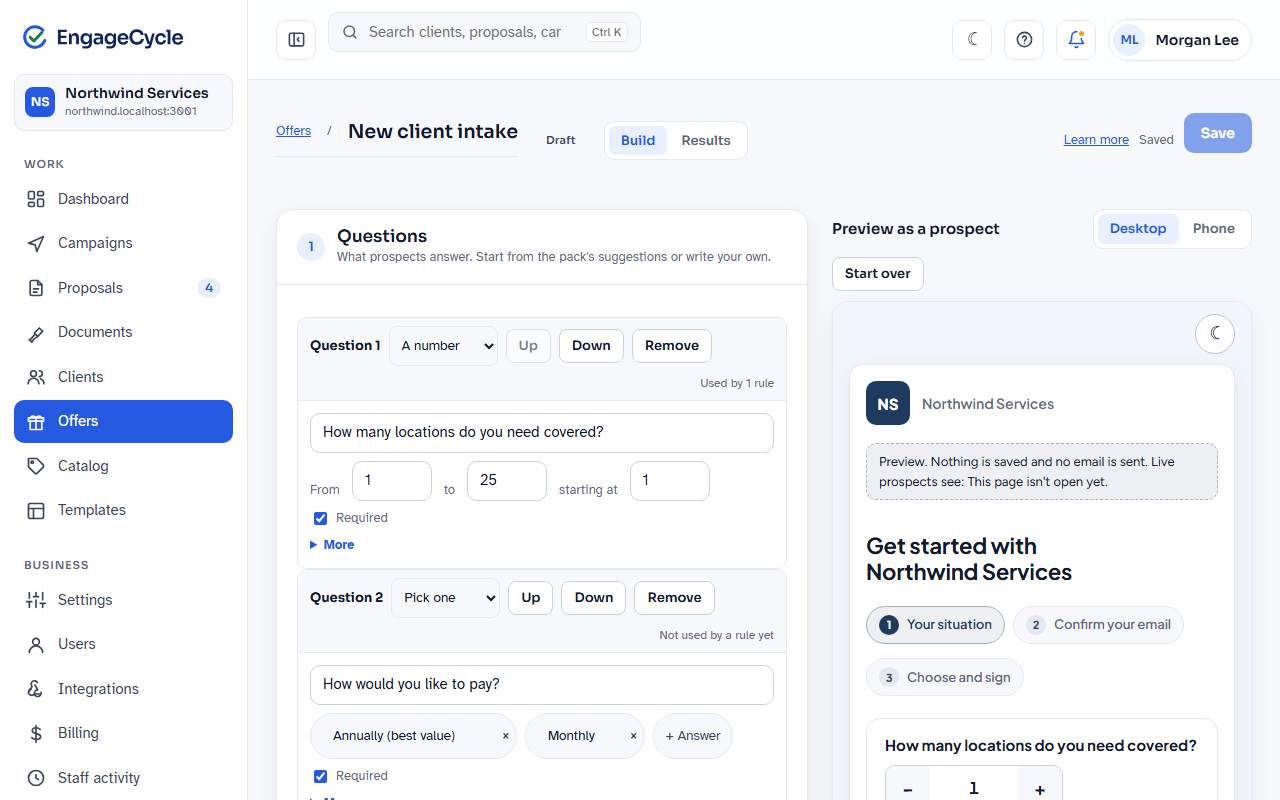
The Build tab has five numbered sections on the left, and Preview as a prospect on the right (below the sections on a narrow screen).
Write the questions
Section 1, Questions, is what prospects answer. A new offer starts with suggested questions from your packs. Under the questions, From your packs: shows more suggestions you can add with one click.
- Click + Add a question, or click a suggestion.
- Pick the Answer type: Pick one, Pick several, Yes or no, A number, or Short text.
- Type the question in Write the question.
- Fill in the answers:
- Pick one and Pick several: edit each answer, add more with + Answer.
- A number: set From, to, and starting at (whole numbers from 0 to 1,000).
- Short text: set how many characters, up to 500.
- Tick Required if they must answer it.
- Open More on the card for extras:
- Help text: a line under the question.
- Only ask when: show this question only for certain answers to a question above it. Click Always (add a condition) to set one, or Always ask to remove it.
- Save the answer to: copy the answer to one of your client fields on the new client's record. Choose Don't save it to keep it on the lead only.
- Use Up, Down, and Remove to arrange the cards.
Each card says Used by 2 rules (or however many) or Not used by a rule yet. You can't remove a question a rule or another question depends on; change those first.
Set the starting build
Section 2, What, is the build every prospect starts from: your packages, what's in each one, and Add-ons they can tick.
- Click Edit the starting build.
- Add packages and services from your catalog, the same way you build a one-off or campaign proposal.
- Your changes save to the offer's draft as you go. Click Back to the offer when you're done.
Each package shows its Starting total at today's catalog prices. A catalog price change reaches the offer right away.
Add rules: how answers change the build
Section 3, Rules, is "if a prospect answers a certain way, then change their build." Rules choose what's offered. Prices always come from your catalog, so an answer never sets a price directly.
- Click + Add a rule. (It needs at least one question that isn't short text.)
- Set the If line: a question, how it compares, and an answer. What you can pick depends on the question:
- Pick one: is, is not
- Pick several: includes, doesn't include
- Yes or no: is Yes or No
- A number: is more than, is exactly
- Short text: can't be used in a rule. It's information only.
- Click + And another condition to add more. With two or more, Match lets you choose all of these or any of these.
- Set the Then line. The changes are:
- Use a different item instead
- Set an item's quantity from the answer (a number answer is the quantity; Yes is 1 and No is 0)
- Add an item to every package
- Offer an item as an add-on
- Remove an item
- Hide a package
- Show only this package
- Mark a package Recommended
- Click + Another change to do more than one thing in the same rule.
Rules run in order, top to bottom. If two rules change the same thing, the later rule shows a note and wins for prospects whose answers match both. Each rule also shows Applies now or Doesn't apply now, based on the answers in the preview.
Choose the template
Section 4, Template, sets the look of the proposal the prospect signs after confirming their email. Click one of your new-client templates to switch. It saves right away.
Preview as a prospect
The preview on the right is the real offer page, built from your latest edits. Nothing is saved and no email is sent.
- Answer the questions in the preview. The price updates as you go.
- Read Why this price under the preview: the rules that matched. Only staff see this.
- Switch between Desktop and Phone to check both widths.
- Click Email me a code (Email me a link if the offer confirms with a link). The preview says "In preview, no code is sent." (or "no link").
- Click Continue as a sample prospect to see the proposal they'd choose from and sign. On an offer set to Hold it for my review, you first see the thank-you page a prospect gets; click See what they'd sign for the proposal.
- Click Start over to clear the answers.
The preview works on a draft or paused offer too, and tells you what live visitors would see instead.
Save your changes
Questions, rules, and the starting build save on their own as a draft while you work. The top bar shows Unsaved changes (or "Draft saved. Save to make it live.") when the draft is different from what prospects see.
Click Save at the top to make your draft the version prospects get. You see "Saved. Prospects see this version now." This lets you edit a live offer without prospects seeing a half-finished rule.
Take it live
Section 5, Sharing, holds the status and everything you need to share.
- If you see Before it can go live: with a list, fix each item (for example, a package with no price yet).
- Click Take it live (owners only).
- Read the credits dialog, Take this offer live?, and confirm with Take it live.
To stop taking new prospects, click Pause. To end the offer, click Close. Either way, the link shows a short message instead of the questions. You can take it live again later.
Next to the status, Sharing says what someone finds at the link right now: Taking requests, or why not and the message they see, for example: Paused, not taking requests. Prospects see "This offer is paused for now. Check back soon." A live offer can still be held back (out of credits, or email paused), and this line says so.
Under More settings you can also change:
- Name and Web address. Changing the web address breaks links and QR codes already shared.
- Heading (optional) and Introduction (optional): the title and opening line prospects see. A blank heading uses the template's title.
- Opens (optional) and Closes (optional): a time window in your business's time zone. Before it opens, the status shows Scheduled; after it closes, Ended.
- Websites that can show it and Look on your website (see the embed steps below).
Click Save settings for these. They take effect right away.
Also under More settings, How prospects confirm is part of the builder, so Save at the top makes it live:
- They confirm their email with: a 6-digit code or a link.
- Follow up when unsigned after (hours): when a confirmed prospect who hasn't signed counts as Didn't finish.
- Their follow-up link works for (days): how long the follow-up link stays good.
- A client with an open proposal: either chooses: that proposal or this offer's, or gets a new one, flagged for staff.
- When someone asks for a proposal: Send it right away (they get their proposal as soon as they confirm) or Hold it for my review (you look at each request first). New offers start on Hold it for my review. A change applies to requests confirmed after you save it; a request already waiting stays waiting. While a held offer is live, Sharing says "Each request waits for your review; sending one uses 1 credit." See Review requests before they're sent.
- With Hold it for my review: Hold everything once there are this many waiting (leave it empty for no limit) and Waiting requests expire after (days) (30 unless you change it).
Share the link or QR code
In Sharing:
- Link: click Copy and paste it into an email, a social post, or a text.
- QR code: click Download QR for a PNG, or SVG for print. The QR code always points to the offer's link.
Put it on your website
- In Sharing, open More settings.
- In Websites that can show it, enter your site's address, one per line, like
www.yourbusiness.com. If your site works both with and withoutwww, add both. - Optionally set Look on your website: Follow the visitor's light or dark setting, Always light, or Always dark.
- Click Save settings. Your site now appears under Websites it can show on.
- Under Put it on your website, click Copy embed code.
- Paste the code into your website where you want the offer to appear, in an HTML or "custom code" block. It's two lines: a frame that shows the offer, and a small script that grows the frame to fit, so visitors don't scroll inside it. Keep both lines.
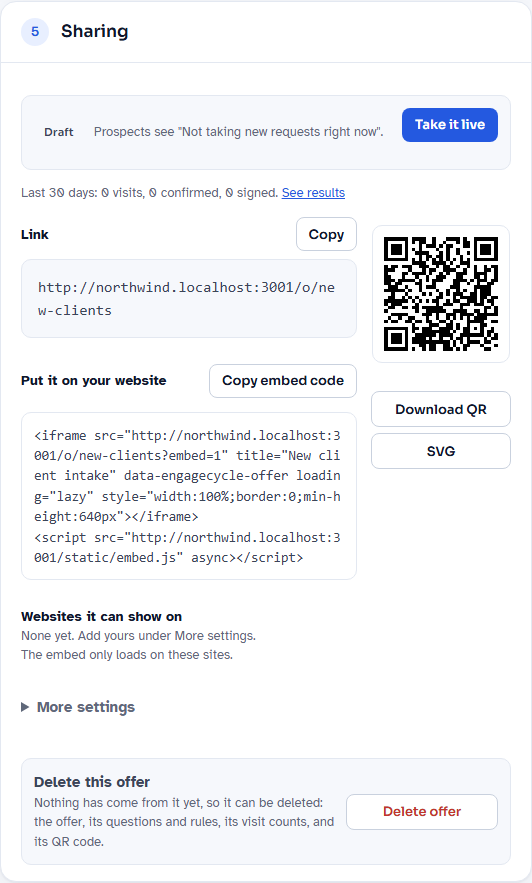
The embed only loads on the websites you list. Anywhere else, it stays blank. When a prospect confirms their code, the proposal opens as a full page rather than inside your site.
What the prospect sees
- Your situation. They answer your questions. The price panel updates as they go, showing Your price (one package) or Your price starts at (several), each package with what's in it and its total, and a Recommended badge where a rule set one. Nothing is chosen for them here.
- Get your full proposal. They enter Your name, Email, and Phone (optional), and can tick to get news and offers from you. If your plan includes multiple signers, they can also tick Add a second signer (for example your spouse) and enter Their name and Their email. Then they click Email me a code, or Email me a link if you chose a link. Nothing is saved until this point.
- Confirm your email. They get a 6-digit code that works for 10 minutes, type it in Code, and click Continue. If you chose a link instead, they get a link that works for 30 minutes and must be opened on the same device.
- Choose and sign. The proposal opens with their packages and add-ons. Nothing is preselected. They pick, review the total, and sign. You get a signed PDF.
After confirming, they're also emailed their own link, so closing the page doesn't lose anything. A second signer gets their own link by email when the proposal is made, and both sign (in any order). See Signers and copied people.
On an offer set to Hold it for my review, the price panel adds "Your final price is confirmed when" your business "sends your proposal." After they confirm their email they see "Thanks," with their first name, and that you'll review their request and send their proposal shortly. They get an email saying the same. Nothing is there to sign until you send it.
If their email belongs to a client who already has an open proposal (and the offer is set to let them choose), they see "You already have a proposal" and pick Open the proposal you have or Get this offer's proposal instead.
If their answers can't be priced, or the offer isn't open, they see a short message asking them to contact you.
Work with leads
A lead is anyone who entered their email on an offer, whether or not they finished. Go to Offers and click Leads.
- Filter by Offer and Status. The statuses are:
- Hasn't confirmed: entered an email but never entered the code.
- Confirmed: confirmed their email and has a proposal.
- Signed
- Didn't finish: confirmed but hasn't signed after the follow-up hours you set.
- Existing client: already had an open proposal (as your client, or from an earlier request) and chose to open it.
- Discarded
- Waiting for review: confirmed on an offer that holds requests, and waiting for you.
- Declined: you declined their request.
- Expired before review: nobody acted on their request in time.
- Click a name to open the lead. You see Who (contact details, where they came from, whether they opted in to news), Their answers, and Why this price.
- Under Next steps, you can:
- Open the client (once they're one of your clients) or Open the proposal.
- Email their link again (while their proposal is open): sends a new signing link. Earlier links stop working.
- Add as a client: for someone who never confirmed. It creates the client from their answers, and you send them a proposal from the client's page.
- Mark contacted: notes that you reached out.
- Discard (for Hasn't confirmed, Confirmed, and Didn't finish): marks the lead discarded. Nothing is deleted. A request waiting for review can't be discarded; decline it instead.
- Owners can also Delete lead, for a privacy request or a mistake. A client made from it stays.
A lead marked Check on the list is someone who was already a client and got a new proposal from the offer. Look at it before following up. You also get a notice when a lead doesn't confirm their email within a day.
A lead becomes a client when they sign. Someone who confirms their email isn't added to Clients yet: they don't show in your client list, its counts, campaigns, or exports, and their lead's page says "Not yet. They become one of your clients when they sign." Once they sign, they're one of your clients, and their Source reads "Offer:" and the offer's name (with the referral partner or source they came from). In Clients, the Source filter lists each offer that has brought you clients. Add as a client on a lead still makes them a client right away, and so does importing or adding a client with their email. Someone who never signs is removed some time after their request closes (declined, expired, discarded, or not finished), along with their answers.
Review requests before they're sent
With When someone asks for a proposal set to Hold it for my review, each request waits for you. Nothing is sent and no credit is used until you send it.
- Requests show up as Waiting for review: on the Dashboard, as a count next to Offers in the menu, and at the top of Leads (click Review them). You also get the new lead notice, saying they're waiting for your review. On Leads, each waiting request has Preview, Edit and send, and Decline beside its status.
- Open a request. Waiting for your review shows their price when they asked (and their price now, if it changed), whether they're already a client, any second signer they added, and when it expires.
- Choose what to do:
- Preview: see exactly the proposal they'd get, with its Good until date. Then click Send link to and their name: it uses 1 credit (you confirm it, as with any send) and emails them their link. If the preview is from an earlier day, click Preview it again. If something changed since your preview, you see "This changed since your preview. Preview it again."
- Edit and send: opens it in the proposal builder as their own proposal, so you can change it. Then preview and send it as usual. Until you send it, the request stays waiting and the button reads Open the draft. Deleting the draft puts the request back to plain waiting.
- Decline: closes the request. Nothing is sent and no credit is used. To tell them, tick Email them and change the Subject and Message if you like (the starting words are under Settings > Email), then click Decline the request.
- A request nobody acts on expires after the days you set (30 unless you change it). They aren't emailed.
If the offer can't price their answers any more (for example, its template is gone), Preview isn't offered and the page says why. Use Edit and send to set up their proposal yourself. If you're out of credits when you send, the request stays waiting.
If you set Hold everything once there are this many waiting, your offer still takes requests past that number, but the extra ones wait in a backlog: they aren't priced and you aren't told about them until you send, decline, or let one expire. The list says how many are not yet opened.
A second signer on a waiting request. If the prospect added a second signer, nothing reaches that person while the request waits. When you send, the second signer gets their own link by email and both sign, in any order. Edit and send puts them on the draft as a signer. Declining or letting the request expire removes them. If your plan no longer includes multiple signers, the request says so, and you tick Send without them to send it to the prospect alone. See Signers and copied people.
See how an offer is doing
Open the offer and click the Results tab. How it's doing shows visits, started, confirmed, signed, and didn't finish, plus a breakdown by where people came from. Sharing also shows a one-line summary for the last 30 days.
To credit people who send you customers, click Referral partners on the Offers page and add a partner with a Code. Their link is your offer link with ?ref= and their code, and it's listed on the offer's Results tab.
Remove or restore an offer
Owners can remove an offer from the Offers list or from the bottom of its Sharing section. Which option you get depends on whether anything came from the offer.
- Delete (nothing came from it yet): click Delete (or Delete offer) and confirm. The offer, its questions and rules, its visit counts, and its link and QR code are gone. This can't be undone.
- Archive (a lead, client, or proposal came from it): the page tells you why, for example "12 leads came from this offer, so it can be archived but not deleted." Click Archive and confirm. The offer closes, its link says "This offer isn't available," and it leaves the list. Its leads, clients, and proposals stay and still show which offer they came from.
- Restore: once something is archived, the list shows Active and Archived. On Archived, click Restore. The offer comes back Paused; take it live when you're ready.
Example: Northwind Services
Northwind Services, a cleaning company, wants new customers to get a price from its website.
- Alex creates an offer named "Home cleaning" at the web address
home-cleaning. - Questions: "How often would you like us to come?" (Pick one: Weekly, Every two weeks, Monthly), "How many bathrooms?" (A number, from 1 to 6, starting at 1), and "Do you have pets?" (Yes or no).
- Starting build: two packages, "Standard clean" and "Deep clean", each with the base cleaning service.
- Rules:
- If "How many bathrooms?" is more than 0, then Set an item's quantity from the answer: Bathroom × the answer.
- If "Do you have pets?" is Yes, then Add an item to every package: Pet hair treatment.
- If "How often would you like us to come?" is Weekly, then Mark a package Recommended: Standard clean.
- In the preview, Alex answers Weekly, 2 bathrooms, and Yes to pets. Why this price lists all three rules, and Standard clean shows the Recommended badge.
- Alex clicks Save. Jordan Lee, the owner, clicks Take it live, adds
www.northwindservices.exampleunder Websites that can show it, and pastes the embed code on the site's "Get a quote" page. - Sam Patel finds the page, answers the questions, enters a code from email, picks Standard clean, and signs. Sam shows up under Leads as Signed.
Good to know
- Nothing is saved until the email. A visitor can answer and re-answer questions freely. A lead exists only once they click Email me a code (or Email me a link).
- Nothing is signable until the email is confirmed.
- Answers never set a price. Rules choose packages and services; prices come from your catalog.
- Live offers change only on Save. Draft edits stay private until someone clicks Save.
- Credits: each confirmed prospect who gets a proposal uses 1 credit. Previews and visitors who never confirm use none. When your business is out of credits, the offer shows "Not taking new requests right now," takes no emails, and its status reads Paused: out of credits. An offer set to Hold it for my review keeps taking requests, since a request uses no credit until you send it.
- Staff vs. owners: staff can build and save offers and work leads. Owners take offers live, pause, close, delete, archive, restore, and delete leads.
- Changing the web address breaks every link and QR code you've shared.
- Short-text answers are kept on the lead but can't change what's offered.
- Abandoned prospects move to Didn't finish after your follow-up hours. If you use webhooks, your automation can send them a follow-up link.