

Users, roles, and your account
This page covers who can sign in to your business, what owners and staff can each do, your own sign-in details, the notices you get, the staff activity log, and what you see when EngageCycle support helps you.
Before you start: only owners see Users in the sidebar. If you're staff, skip to Your own account.
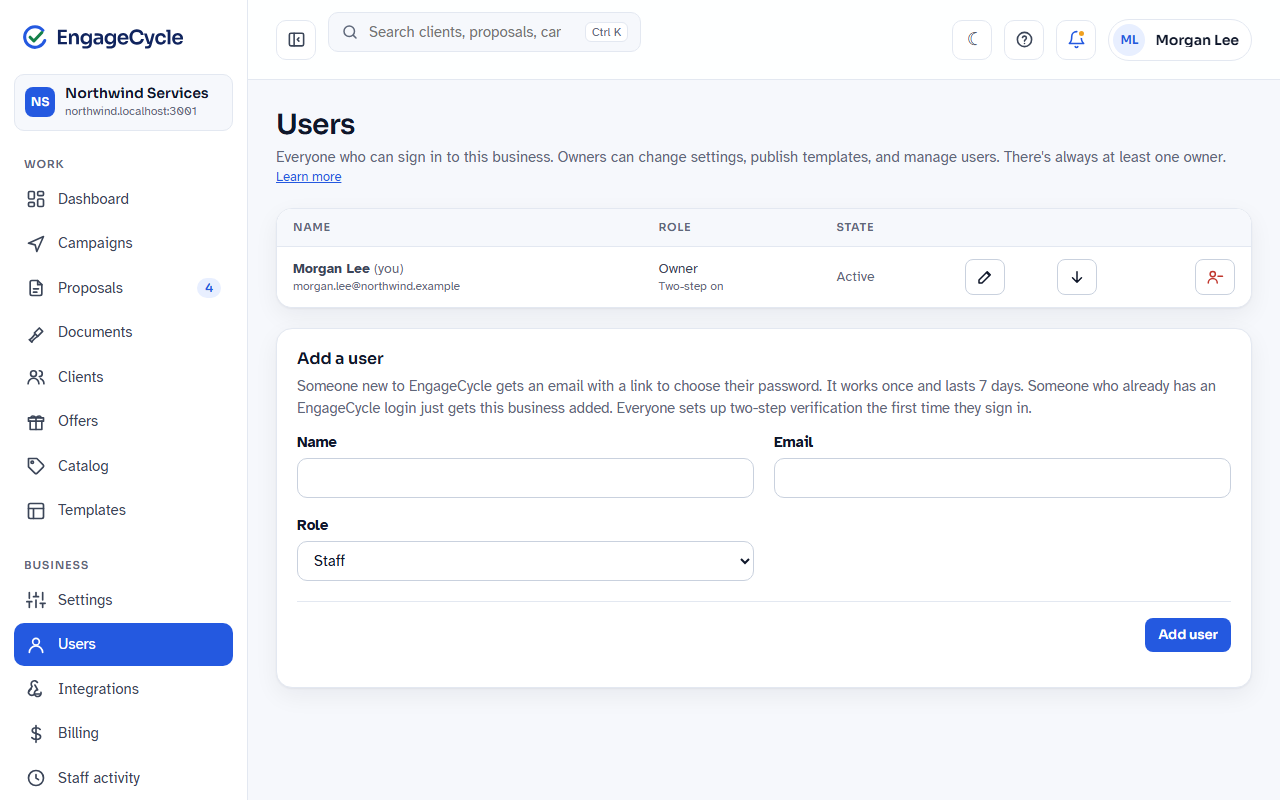
Owners and staff
Everyone on your business is either an Owner or Staff. There's always at least one owner.
Owners and staff both can:
- Work with clients, proposals, campaigns, offers, and leads.
- Edit templates and save drafts.
- Open Settings and see how things are set up.
- See Staff activity, their own Notifications, and the credits chip in the top bar.
Only owners can:
- Change anything in Settings, including Business and Branding details.
- Manage people on the Users page.
- Publish a template or make one the default, and archive, restore, or delete a template.
- Take an offer live or pause it, and delete, archive, or restore an offer.
- Delete a client (or remove their details) or a lead.
- Change catalog prices, archive or restore services, and import a catalog.
- Upload or remove the logo.
- Use Integrations: add, change, turn on or off, and delete webhook endpoints, make their signing secrets, send test events, resend deliveries, and create and revoke API keys.
- See Billing.
- Turn industry packs on or off and add starter templates.
- Change anything on the Email settings page (sender, test emails, pausing, bounces, and wording).
- Add, edit, hide, or remove client fields and consents, and download them as a pack.
- Set notice defaults for the business.
- See and answer EngageCycle support sessions under Security.
- Export everything, close the business, or reopen it.
- See plan details in the credits panel.
Staff see the same pages, but owner-only buttons are greyed out or missing. If a staff member tries an owner-only action, they see "Only owners can do this."
Add a user
- In the sidebar, click Users.
- Under Add a user, enter their Name and Email.
- Choose a Role: Staff (the default) or Owner.
- Click Add user.
What happens next depends on whether they already use EngageCycle:
- New to EngageCycle: we email them a link to choose their password. Their row shows "Invited, link works until" and a date.
- Already has an EngageCycle login (for another business): your business is simply added to their account. It shows up when they sign in.
You can't add someone who's already on your team.
When the email can't be sent
If EngageCycle email is paused or not working, you see a page titled "Send (their email) their link" with the set-password link and a Copy link button. Send it to them yourself, in a text or another message. It's shown only this once, so copy it before you click Done. Anyone with the link can choose the password, so send it only to that person.
Set-password links
A set-password link works once and lasts 7 days. When they open it, they see "Welcome to (your business)", choose a password of at least 12 characters, and click Save password. Then they sign in with their email and that password.
If the link has expired, their row shows Invite link expired. To send a fresh one:
- On Users, find the person.
- Click Send a new link and confirm.
The old link stops working as soon as you send a new one. Send a new link only appears while the person hasn't chosen a password yet. If they already have a password and forgot it, they use Forgot your password? on the sign-in page.
Change someone's role
- On Users, find the person.
- Click Make owner or Make staff, and confirm.
Staff who become owners can change settings, publish templates, and manage users. Owners who become staff keep their access but lose the owner-only actions.
You can't make the last owner staff. If you try, you see "Make someone else an owner first." Make another person an owner, then change the first one.
Edit someone's name
- On Users, click Edit name on their row.
- Type the new name and click Save name.
The name belongs to their login, so it changes on every business they belong to. The change is recorded in Staff activity.
Suspend and restore someone
Suspending is a pause, not a removal. Use it for someone on leave, or while you sort something out.
- On Users, click Suspend on their row and confirm.
- They're signed out of your business right away and can't sign in to it until you restore them. We email them to let them know.
To let them back in, click Restore on their row and confirm. We email them again.
Nothing they did changes while they're suspended. You can't suspend yourself. A suspended owner doesn't count as an owner, so you can't suspend your only active owner.
If someone belongs only to businesses that have suspended them, they see "Your access is paused" when they sign in.
Remove someone
- On Users, click Remove on their row.
- Confirm. They can't sign in to your business anymore, and we email them.
What they did stays in Staff activity. Their login still works for any other business they belong to.
To take yourself off a business, click Leave on your own row. You can't leave if you're the last owner.
See someone's notices
Owners can look at what a staff member or another owner gets by email:
- On Users, click Notices on their row.
- You see their choices, read-only. Only they can change them, from their own account.
Your own account
Open the menu with your name in the top bar and click Your account. Everyone has this page, owners and staff.
The same menu has My notices, Send feedback, Help (these help pages, in a new tab), and Sign out. The Help button in the top bar (the question mark) has Help center, Send feedback, and My feedback. See Sending feedback.
To sign in with your Google or Microsoft work account instead of your password, see Signing in with Google or Microsoft.
Your details
- Under Your details, change your Name or Email.
- If you change your email, also enter your Current password.
- Click Save details.
Your name appears in the staff activity log. After an email change, sign in with the new email.
Change your password
- Under Password, enter your Current password.
- Enter a New password of at least 12 characters, then type it again in New password again.
- Click Change password.
Changing your password signs you out on every other device.
Two-step verification
Everyone who signs in to a business sets up two-step verification the first time they sign in. You need an authenticator app on your phone (Google Authenticator, 1Password, Authy, or similar).
To set it up:
- On the Set up two-step sign-in page, enter your Password and click Generate QR code. If you set up your login with Google or Microsoft and have no password, just click Generate QR code.
- Scan the QR code with your authenticator app. If you can't scan it, type the key shown under the code into the app.
- Save the Backup codes somewhere safe. Each one signs you in once if you lose your phone, and they're shown only now.
- Enter the 6-digit code from the app and click Turn on two-step sign-in.
Each time you sign in after that, you enter a code from the app (or a backup code) and click Verify.
Once it's on, Your account shows two more options under Two-step verification:
- New backup codes: enter Your password and click Get new backup codes to get a fresh set. The old ones stop working. Click I've saved them when you're done.
- New phone or authenticator app: for a new phone. Enter Your password and click Set up a new app, and you're walked through scanning a new QR code. The old app stops working.
If you set up with Google or Microsoft and have no password, you confirm it's you with that account instead. See Backup codes and a new phone without a password.
Sign out of other devices
Under Devices, click Sign out of every other device. You stay signed in where you are.
Notices
Notices tell you what happened on your proposals, offers, and account. Every notice shows in Notifications (the bell in the top bar). You choose which ones also reach you by email.
Read your notifications
- Click the bell in the top bar.
- Use the filters at the top (All, Proposals, Campaigns, Offers, Delivery, and so on) to narrow the list.
- Click Open on a notice to go to what it's about.
- Click Mark all read to clear the new ones.
Owners also see the Imports and exports, Credits, and Account groups. Staff don't.
Choose what you get by email
- Go to Your account and click Change my notices, or choose My notices from the menu with your name.
- For each notice, pick How:
- Email right away
- Daily summary email (8 AM), in your business's time zone
- In the app only
- Off (offered for some notices)
- For proposal notices, pick About: All proposals or Only proposals I made.
- Click Save my notices.
To undo your choices, click Go back to my business's defaults.
"Right away" emails are bundled: if several of the same kind happen within 10 minutes, you get one email. Every notice email ends with a link back to My notices.
Account notices (someone added, removed, suspended, restored, or given a new role; the business paused or closed; EngageCycle support pausing your email) are always emailed right away to owners, and so are a failed payment to EngageCycle and a plan that ended. They're marked "Always emailed to owners", and you can't turn them off.
Set the defaults for your business (owners)
New people get your business's defaults until they choose for themselves.
- Go to Settings and click Set notice defaults under Notices.
- Set the choices under Owners and under Staff.
- Click Save changes in the bar at the bottom of the page.
Changing the defaults doesn't change anyone who has already made their own choices.
Staff activity
Staff activity (in the sidebar, or the button at the top of Settings) lists changes made on your business, newest first: who did it, when, and what. It shows the latest 200 entries. Owners and staff can both see it.
It includes things like settings changes, people added or removed, password and two-step changes, emails paused, and anything EngageCycle support did. Click an entry's description to open what it's about, when there's a page for it.
When EngageCycle support helps you
EngageCycle support can open your admin to help you, for a set time and a stated reason. They never sign in as you or as anyone on your team, and they don't appear on your Users page.
What you see
- Owners are emailed every time a support session starts: who, why, what they can do, and until when.
- Settings, under Security, lists the session while it's open, with "Open until" and the time it ends.
- Support sees a banner on every page of your admin during the session, for example "EngageCycle support, look only, ends 2:45 PM", so it's always clear to them what they can do.
- Staff activity shows everything support does, under "EngageCycle support" and the person's name.
A session can be one of three kinds:
- Look only: see your admin, change nothing.
- Make changes: fix things with you, but not send anything to your clients.
- Make changes and send: also send to your clients, with its own stated reason.
Sessions last 15, 30, or 60 minutes. Support can never manage your users, API keys, webhook, email sender, exports, or closing, and can't see your Security settings or anyone's account page.
In a Make changes session, support saves pages like Settings, the wording of your client emails, notice defaults, a client's details, and a service in your catalog the same way you do, with Save changes in the bar at the bottom. In a Look only session those pages are read-only and there's no bar. Support can never change who must sign a client's proposals: if a save would change it, nothing on the page is saved.
Require your approval
By default, sessions start without approval and owners are emailed. To approve each one first:
- Go to Settings and scroll to Security (owners only).
- Click Require my approval for support sessions.
Now every owner gets an email with a link when support asks. The link opens a page titled "EngageCycle support asks to open (your business)" that shows who, for how long, what they can do, and why. Click Approve or Decline. The link lasts 24 hours.
You can also answer from Settings, under Security: a waiting request shows Approve and Decline.
To go back to no approval, click Stop requiring my approval. Owners are still emailed when a session starts.
End a session
Any of these ends it right away:
- End now next to an open session in Settings, under Security.
- Support ends it from their side, or the time runs out.
The Security list shows your recent sessions, with who, why, what, and when, and how each one ended.
Good to know
- There's always at least one active owner. To remove, demote, or suspend the last one, make someone else an owner first.
- A name change shows on every business that person belongs to.
- Each row on Users shows whether two-step verification is on (Two-step on or Two-step not set up), and a Google or Microsoft tag for anyone who signs in that way.
- A Login disabled state on the Users page means EngageCycle support turned that login off. Contact support about it.
- Suspending keeps the person's history and access settings, so restoring is instant. Removing takes them off the business.
- Set-password links work once and last 7 days. A newer link replaces an older one.
- Changing your password or clicking Sign out of every other device signs you out everywhere else.
- Your notice choices apply to the business you're in. If you belong to more than one business, set them in each.