

Signers and copied people
This page covers the people on a proposal besides your client: people you copy so they can see it, and other people who sign it too.
Signer or copied person?
- A copied person gets their own view-only link to the proposal and, if you choose, the signed copy. They can see the proposal and where it stands, but they can never choose a package, sign, or decline. For example, a client's business partner or a family member who wants to be kept in the loop.
- A signer signs the proposal too, with their own link. The client is always a signer. Other signers (a spouse, for example) are available only when Multiple signers is turned on for your business. If you don't see Role when you add a person, it isn't on; contact EngageCycle to ask about it.
Copied people never appear on the proposal or the signed PDF. Signers appear only where the signed PDF shows who signed.
Before you start
- An email sender. Copied people and other signers get their links by email from your business's sender (Settings > Email). Without one, nobody is emailed, and the builder says "You don't have an email sender, so copied people aren't emailed. Your automation gets their view-only links in proposal.sent." (or the same about signers). See Email settings.
- The client asked. You add someone only when the client asked you to share their proposal with that person. You tick a box to confirm it every time.
Add people to a client
People you add to a client are put on every new proposal for that client. You can still change who's on one proposal in the builder.
- Open the client under Clients.
- In the People section, click Add a person.
- Fill in Name, Email, and Relationship (Spouse, Family, Assistant, Business partner, or Other). You can also add a Phone (optional).
- With Multiple signers on, choose a Role: Copied: sees it, can't sign or Signer: signs it too.
- Tick The client asked us to share this proposal with this person. EngageCycle records who ticked it and when.
- Click Add person.
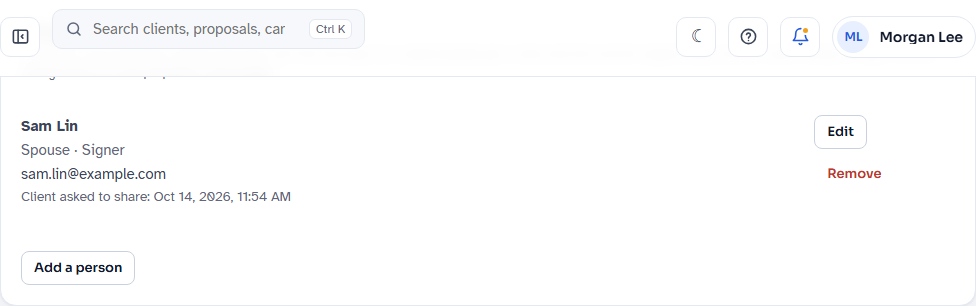
Each person shows their relationship, their role, their email, and when the client asked to share. Click Edit to change someone (if you change their email, tick the box again), or Remove to take them off the client's future proposals.
Who must sign by default. Once a client has a signer, a Signing section appears under People. Choose Who must sign their proposals (All signers or Any one signer) and click Save changes in the bar at the bottom of the page, which saves it with the client's Profile. It's the default for new proposals, and you can change it on each one.
Some limits:
- You can't use the client's own email for one of their people ("That's the client's own email. They already get the proposal.").
- A client can have up to 10 people.
- A proposal can have up to 4 signers, the client included.
Copy someone on one proposal
A new proposal starts with the client's people. To change them for this proposal only:
- In the builder, find the Copied people card on the right (called Signers and copied people when Multiple signers is on).
- Click Add a person and fill in the same fields and tick as above, or click Remove next to someone.
- Send them the signed copy too is on by default. Untick it and click Save if copied people should only see the proposal, not get the signed PDF.
Changes here don't change the client's own list. Adding or removing people doesn't change the document, so you don't need to preview again.
On the preview page, Copied lists who's copied, with a link to What a copied person sees: the page they'll get, with nothing sent.
Who's on a proposal is fixed once it's sent. To change it after that, revise the proposal.
Add a second signer
With Multiple signers on, add a signer the same way as a copied person (on the client, or in the builder), with Role set to Signer: signs it too.
Once a proposal has a signer besides the client, a Signers card appears in the builder above the people card. It lists every signer. The client is first unless you change the order.
- Choose Who must sign:
- All signers: the proposal is signed when everyone has signed.
- Any one signer: the first signature completes it.
- For All signers, choose Order (All signers):
- Any order: everyone gets their link when you send.
- In order: the next signer gets their link once the one before signs.
- Click Save signing.
- For In order, use Up and Down to set the order.
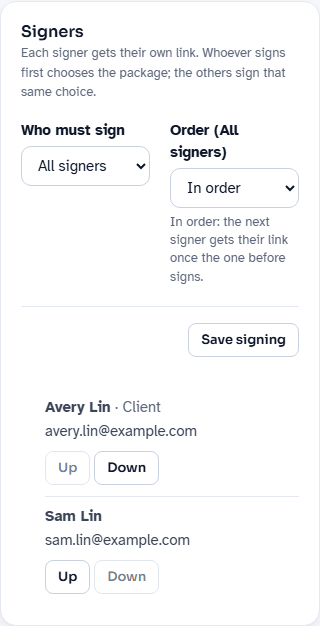
Who chooses. On a proposal with packages, the first signer to sign chooses the package and add-ons. Everyone after them sees that choice filled in and locked, and signs the same thing. Each signer types their own name, fills in their own initials, and agrees to the consent for themselves.
All signers vs. any one signer when someone says no.
- All signers: if any signer declines, the proposal is declined for everyone. The other signers who had a link are emailed that it was declined.
- Any one signer: one decline leaves the proposal open, and you're told at once. The others can still sign. It's declined only when every signer has declined.
What each person receives and sees
A copied person
When you click Send link, each copied person gets an email titled "[Your business] sent [client] a proposal", with a See the proposal button. It says only the client can choose and sign.
Their page shows the whole proposal read-only, with no way to choose, sign, or decline. A banner reads "You're viewing a copy. Only [client] can sign." At the top, it shows where the proposal stands:
- Waiting to be signed: "Waiting for [client] to sign", with the date it's good until.
- Signed: "Signed by [client] on [date]", with what the client chose and Download the signed copy (if they get the signed copy).
- Not going ahead: "[client] decided not to go ahead." The reason is never shown.
- Expired: the date it expired without being signed.
- Withdrawn: "This proposal has been withdrawn", with no document.
With more than one signer, nobody is named: the email says only the people asked to sign can choose and sign, the banner reads "You're viewing a copy. Only the people asked to sign can sign it.", and the status reads "Waiting for the people asked to sign", "Signed on [date]", or "It was declined, so it won't go ahead".
When the client signs, copied people who get the signed copy are emailed it too, as long as Email clients their signed copy is on in Settings > Email.
How you send changes who's emailed:
- Send link emails copied people their link.
- Create link emails them too, unless you untick Email copied people (2) their view-only link above the button (the number is how many are copied).
- Sign in person emails them no link. They still get the signed copy.
- Email the link, Send a new link, and reminders go to the client only. Copied people's links keep working.
A signer
Each signer gets their own email ("[Your business] needs your signature too") with their own link. With In order, only the first signer gets theirs at send; the next one is emailed their link when the one before signs.
A signer after the first sees "[name] chose and signed. Review their choice and sign." above the proposal, and the initials already given beside each box. After signing, a signer sees "Thanks for signing" and who it's still waiting for. Once everyone needed has signed, each signer gets the signed copy by email.
Under Any one signer, once someone signs, the others' links show "[name] signed this proposal", and they get the signed copy too.
The signed PDF and certificate
The signed PDF has a "Signed electronically by" line for each signer who signed, and each initials box shows every signer's initials (for example "AR · SP"). The Signature certificate adds a Signers section: each signer's name and email, when they signed, their IP address and browser, how they signed, and the link they used. It also shows who chose and, under Any one signer, who Could also sign.
Copied people aren't on the PDF or the certificate.
Titles, when the client is a business
When the client is a Business, every signer signs for the business and gives their title. On the client's People, each person has Title (optional) (shown only while the client is a Business), and each signer's page starts with the title you entered for them; the client's own link starts with the Contact's title. Each signer confirms or changes their own title before signing.
The signed PDF's line for each signer reads, for example, "Managing Member, for Northwind Services", and the certificate's Signers section lists "Alex Rivera, Managing Member, for Northwind Services". The Signers table on the proposal's page shows each title. See Proposals for businesses.
After sending
Open the proposal from Proposals.
Copied people
The Copied people table shows each person, whether their link was emailed, how many times they've looked (and when), and whether they get the signed copy.
- Send copy again emails them their link again. If the proposal is closed (signed, for example), it's a new link, and the earlier one stops working. You need an email sender for this. It isn't offered on a withdrawn or replaced proposal.
- Remove access stops every link the person has, for good: it says "This link is no longer active". They won't get the signed copy or a withdrawn notice. To give them access again, click Send copy again, which sends a new link.
Signers
The Signers table shows each signer in order, their state (Waiting their turn, To sign, Signed, Declined, or Voided by a new version), who chose, and when they signed or declined. While the proposal is partly signed, its status reads, for example, Signed by 1 of 2, here and in the Proposals list.
- Copy link shows that signer's link so you can paste it into a text message.
- Send link again emails that signer a new link. Their earlier links stop working.
Both appear only for a signer whose turn it is and who hasn't signed or declined. For the client, you can also use Send a new link under Actions, as usual. Email the link emails the client and each other signer whose turn it is.
Reminders and expiry
- Reminders (set in Settings > Email) go to each signer who hasn't signed and whose turn it is. With In order, that's only the current one. Copied people never get reminders.
- Expiry is for the whole proposal. If it passes before everyone needed has signed, the proposal is Expired and can't be signed. Every signer is told; one who already signed reads "Your proposal expired before everyone signed." A copied person's page says it expired.
- More time is for the whole proposal too: Extend deadline gives every signer the new date, and their links keep working. With Email the client ticked, each signer whose turn it is gets an email with the new date; a signer still waiting their turn gets a link with the new date when it comes. See Give a client more time.
Revising or withdrawing
- Revise starts the new version with the people from the old version (not the client's current list), and you can change them in the builder. Sending it emails everyone again: each signer gets a new link and each copied person gets a new view-only link. The old version's links show it was withdrawn.
- Revising or withdrawing a partly signed proposal cancels the signatures already given. They're kept as history (Voided by a new version), and everyone signs the new version again.
- Withdraw with Email the client ticked also tells each copied person whose link was emailed ("We'll also tell the person copied on it.") and each signer who had a link. Untick it and nobody is emailed.
You can't revise or withdraw a proposal once everyone needed has signed.
Signing in person with several signers
- Click Sign in person (on the preview page, or on a sent proposal's page). Sending this way from the preview page emails nobody a link.
- On Sign in person, choose Who signs now (when more than one signer can sign), tick the box confirming you've checked their identity, and click Start in-person signing.
- Hand over the device (Open signing page) or have them scan the code.
- When they've signed, the page says Hand the device to the next signer. Take the device back and click Confirm [name] and continue. You may be asked to sign in.
- Tick the box confirming that signer's identity, click Open [name]'s turn, and hand the device over again. Repeat until everyone has signed.
With In order, signers sign in order. The certificate records you as the staff member who checked each signer's identity.
Campaigns and offers
Campaigns. Each client's proposal starts with that client's people, so their copied people and signers come along. Each batch emails them as a single send would. In Review, a client whose copied people changed since their last signed proposal is flagged, for example "Copied people changed: added Sam Patel". See Campaigns.
Offers. With Multiple signers on, the contact step of your offer shows Add a second signer (for example your spouse), unticked, with Their name and Their email. The second signer gets their own link by email and signs too, under All signers in Any order. Their email must differ from the prospect's. Nobody is copied from an offer.
On an offer that holds requests for your review, the second signer waits with the request and gets nothing until you send it. The request shows them under Second signer. If your business no longer has Multiple signers by then, tick Send without [name] to send it with one signer. See Review requests before they're sent.
Credits
A proposal uses 1 credit the first time it's sent, however many people are copied on it and however many sign it. Send copy again, Copy link, and Send link again don't use another. See What's a credit?.
Good to know
- Copied people never sign. Their link can't be used to choose, sign, or decline, even if they forward it.
- Who's on a proposal is fixed at send. To change it, revise the proposal.
- The client's list is a starting point. Changing people in the builder affects that proposal only; changing the client's People affects new proposals only.
- If Multiple signers is turned off later, proposals already sent keep their signers. On new proposals, the client's signers come along as copied people.
- Agreements and consents sent on their own take the client's signers but not copied people. See Documents: agreements and consents.
- Change the wording of these emails in Settings > Email: look for the ones starting Copied: and Signer:.
- Notices. You're told in the app when one signer of several signs, and at once when one declines. "A person copied on a proposal opened their copy" is off unless you turn it on in My notices.
- Every change is recorded in Staff activity (in the sidebar), including who ticked that the client asked to share. A proposal's own changes also show under Staff activity on its page.